
As a Flex customer, you can manage multiple organizations in one account. Each organization has its own configuration, i.e. its own Widgets, operator accounts, macros and so on. You can manage multiple organizations as part of your account.
This is handy if you have multiple organizations and want to divide your staff into independently operating teams.
Within the Message Center Settings, the account owner can give operators permission to access organizations other than their own in the Dashboard. They will be able to view and configure the Dashboard for these organizations based on their role’s permissions.
There are two options:
- Granting access to “All Organizations” would mean that operator would have access also to the future-created ones.
- Individually select some organizations from the list (the operator would have access only to those)
They are also able to chat for different organizations in the Lime Connect Message center.
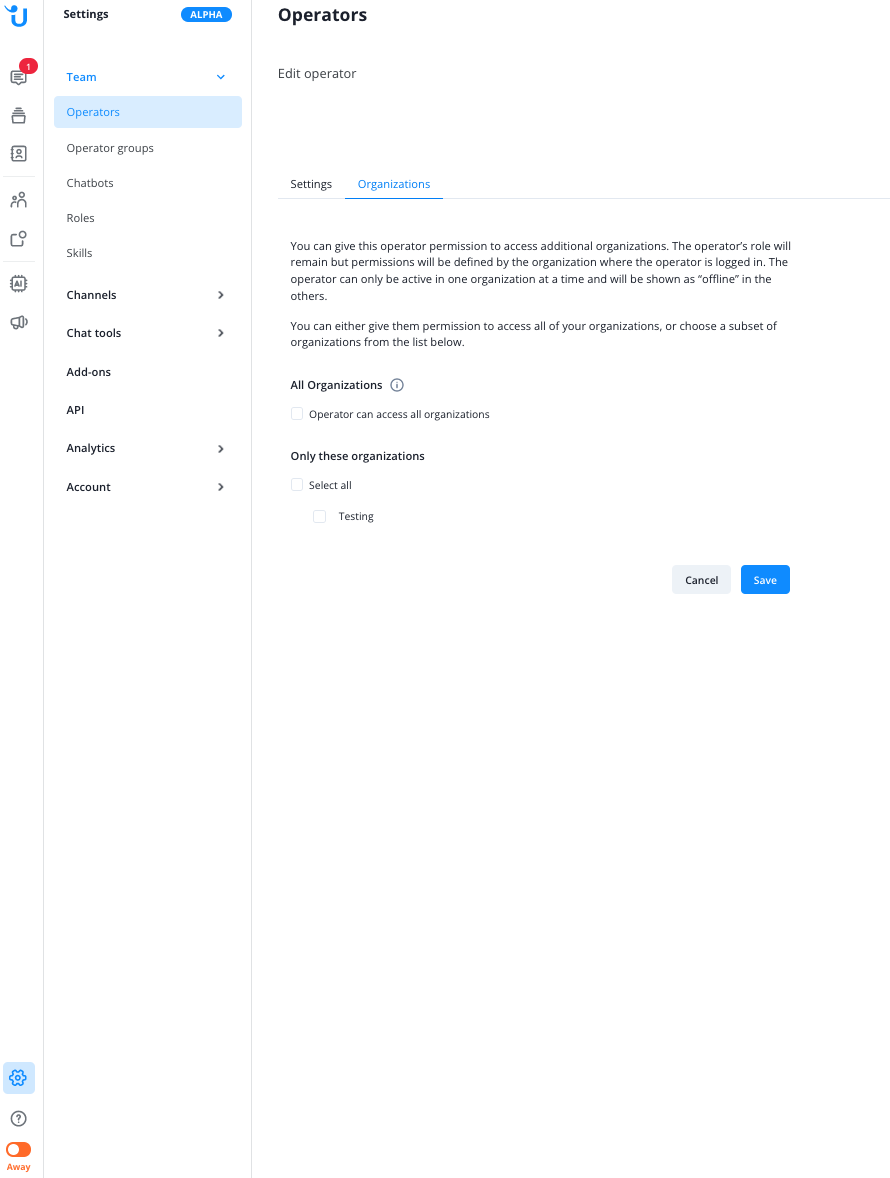
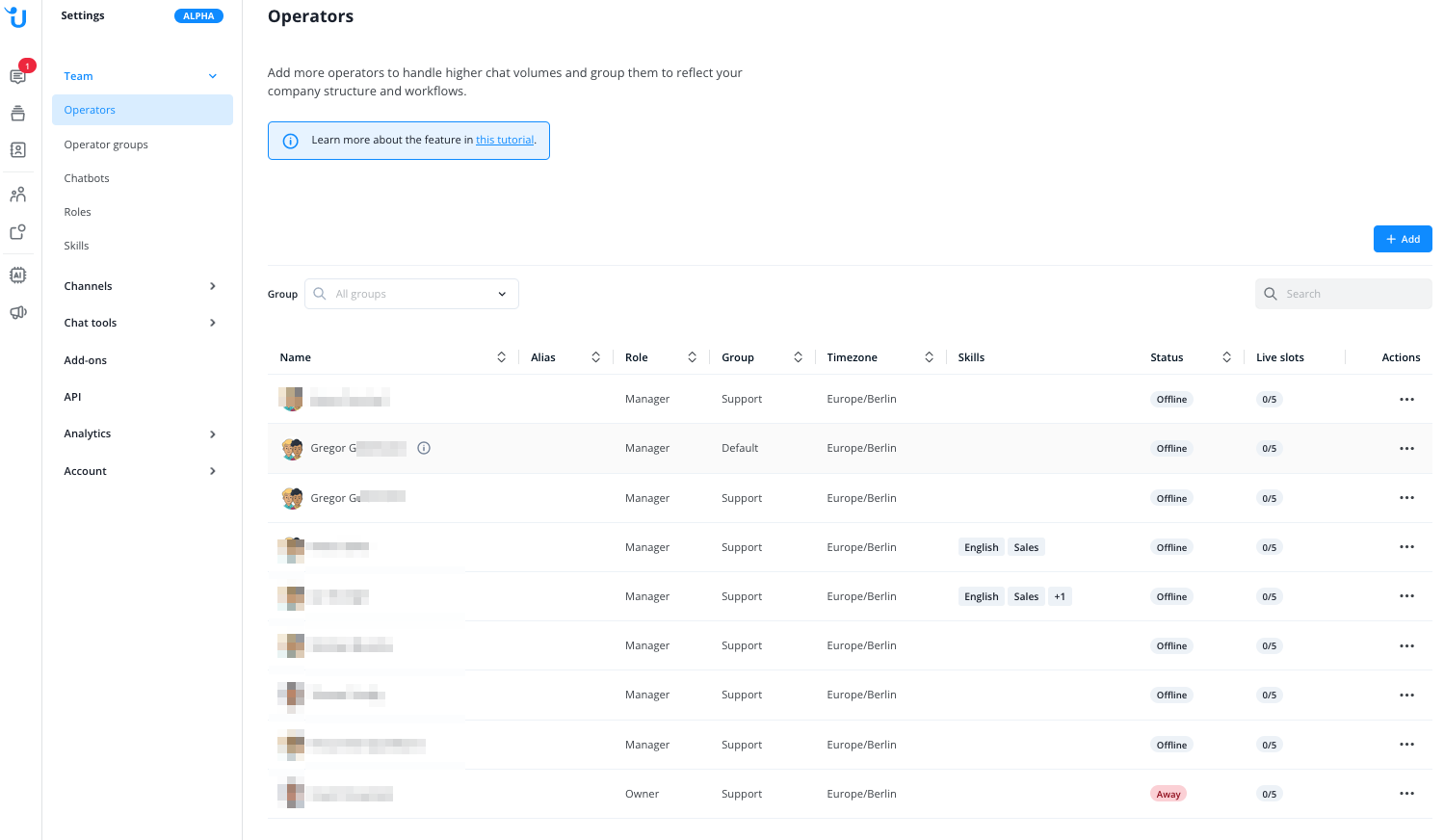
When adding an operator to an additional organization, a separate operator will be added to the operators list (as soon as he changes the organization for the first time), marked with an information button (this operator does not count toward your booked seats, it is just added for technical reasons)
Please note the following limitations:
- You cannot log in directly with that operator, any login could happen only through “switching” organizations inside the Message Center (see below)
- The operator would inherit the role of the primary operator. Note that access rights to different views and settings could be different from the primary operator, as those are defined by the organization setting in “Team -> Role”
- The operator would be assigned to the default group and an empty list of skills
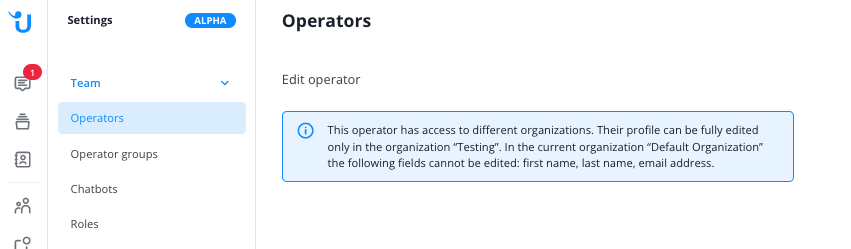
When trying to edit this additional operator, you will be presented with a message, indicating that you can edit fully only in the “origin” operator profile.
Switching Organizations in Message Center
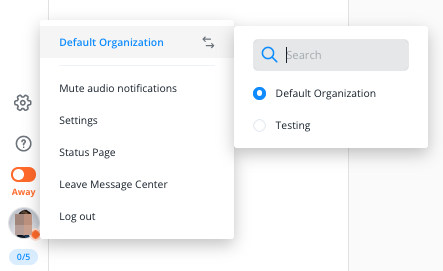
Within Lime Connects Message Center, operators can switch between the organizations by clicking their profile picture on the lower left of the screen and click on the organization switcher at the top of the menu.
Each time operator switches from the primary organization an alert would be shown. The operator has a choice to dismiss that alert and it would never be shown again.
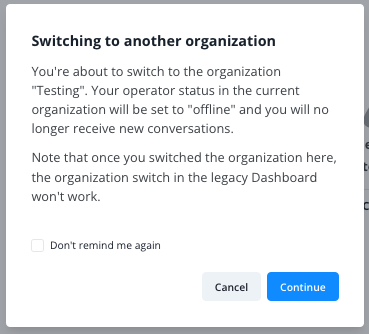
After switching the organization, the Message Center reloads with the other organizations settings and automatically sets the operator to “away”.
Additional questions:
- How long does an operator stay in the switched organization?
- Until logging out.
- Until the tab is closed.
The operator would remain in the switched organisation after a page refresh.
- What would happen if access to another organization is removed?
- If the operator was switched to that organization - the operator would be logged out
- The operator(with the “info” button) would still be visible in the table
How do I allow or withhold copies of my Connect AI setups and tool calls in tests?
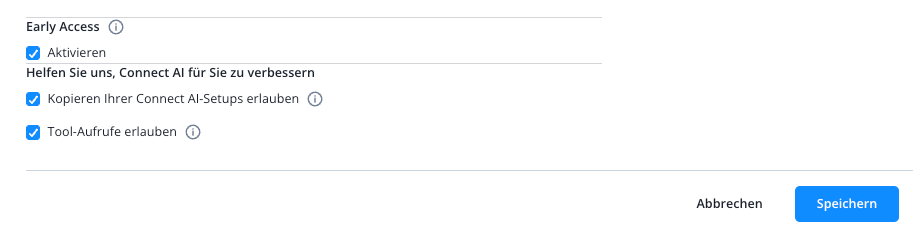
Every organization has the section "Help us to improve Connect AI for you" in its settings, even if you only have one organization. It concerns copies of your Connect AI setups (e.g. settings, guidelines, actions, knowledge base content) for testing and quality assurance purposes and has two checkboxes: "Allow your Connect AI setups to be copied" and "Allow tool calls". Both are unticked by default, including for existing organizations. Only the account owner can tick them; to withhold, leave them unticked.
Each checkbox has an info text that says what it allows. The texts read:
Allow your Connect AI setups to be copied
If enabled, you allow us to create copies of your Connect AI setups (e.g. settings, guidelines, actions, knowledge base content) and use them for testing and quality assurance purposes, which includes processing them with AI models. This helps us make updates more compatible with setups like yours. It does not grant us access to your conversations or contact data. After you disable this option, we will no longer create new copies of your setups or update existing ones. Copies made while the option was enabled will be kept and may continue to be used for the purposes described above.
Allow tool calls
If enabled, these tests may also call your API actions and MCP tools. We only call tools that are safe to use in tests, such as ones that only read data.
Before you start:
- Account owner only: The account owner is the operator with the role "Owner". Only they see the section and can change the checkboxes; operators with any other role do not see it. You can see each operator's role under "Team" > "Operators" in the "Role" column. If you do not see the section, ask your account owner.
- Only when editing: The section is not there when you create a new organization. It appears as soon as you edit the organization afterwards.
- One organization at a time: The checkboxes apply only to the organization you are editing. If you have several organizations, decide for each one separately.
- Two separate settings: Each checkbox is its own setting: you can tick either one without the other. Each change gets its own entry in "Change history".
- Copies already made: If you untick "Allow your Connect AI setups to be copied" later, its info text says what happens to copies already made.
Click on the "Settings" icon at the bottom of the Message Center side panel. Its name appears when you point at it with the mouse. Then select "Organizations" under "Account". In the organization's row, click the three-dot menu and select "Edit". Every account has the "Organizations" entry; if your plan does not include further organizations, the list shows only your own.
Scroll to the end of the form. Below "Early access" you will find the section "Help us to improve Connect AI for you". The same texts as above appear behind the info icons next to the checkboxes.
Tick each option you want to allow and click on "Save".
How do I withdraw what I allowed?
Open "Settings" > "Account" > "Organizations", click the three-dot menu in the organization's row and select "Edit". Scroll to the end of the form to "Help us to improve Connect AI for you"; only the account owner sees this section. Untick each checkbox you want to withdraw and click on "Save". The change is saved as soon as you click on "Save"; there is no further confirmation.
Where can I see who changed the setting?
Every change to either checkbox appears after saving as its own entry under "Settings" > "Account" > "Change history". The entry shows the operator who saved the change, and its description names the organization.
- "Allow tool calls" creates Tool calls in evaluations allowed and Tool calls in evaluations withdrawn in the same way.
In these entries, evaluations are the tests that the info texts describe.