
Introduction
Lime CRM is a market-leading tool that’s tailored to your needs and offers you a smarter way to conduct business. With our integration, you can convert conversations into Lime CRM objects.
Step 1
If you don’t already have a Lime CRM account, you can create one here. A Lime consultant will take you through the process of connecting Lime Connect and Lime CRM. To get a first overview or to handle the installation yourself, read Lime’s own documentation here.
Step 2
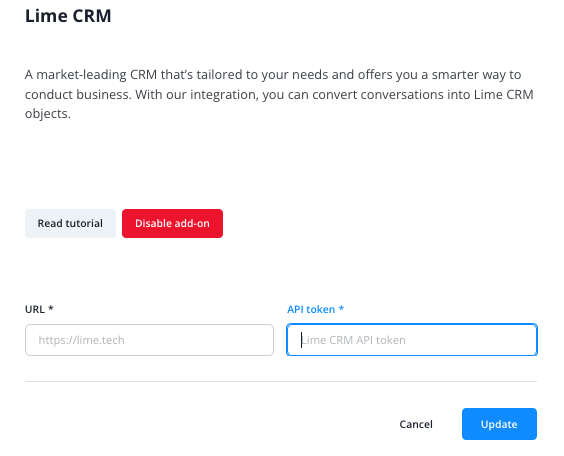
Once you’ve received your Lime CRM URL and API key, go to your Lime CRM add-on settings in Lime Connect and enter your credentials. Then click Update settings.
Sending conversations to Lime CRM
In the Message Center, you can now manually send conversations to Lime CRM via the action bar above the conversation
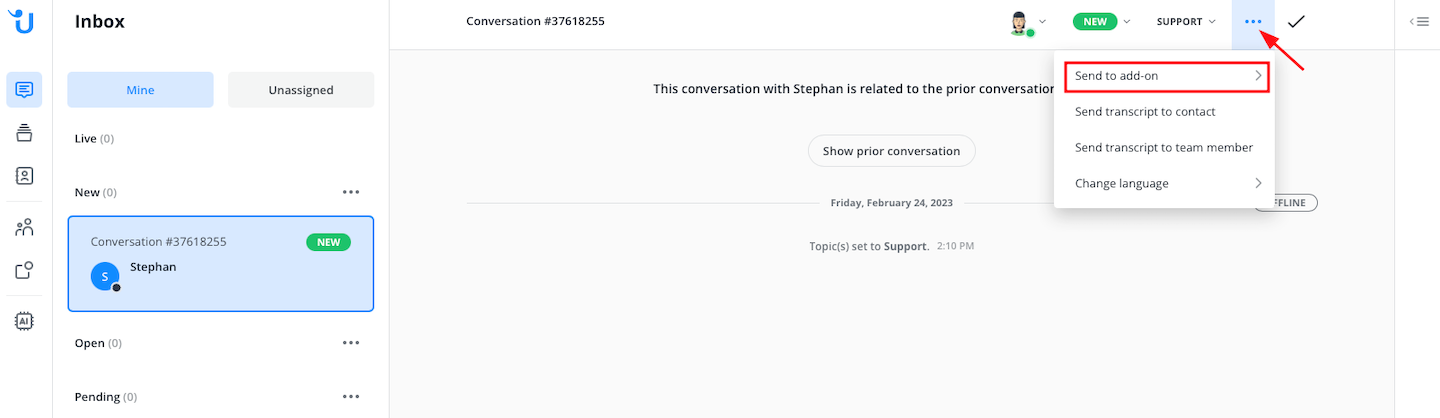
or via chat command in the input field.
$lime - Create Lime CRM object (“limeobject”) from current conversation
Under All conversations, you can also send multiple conversations to the add-on.
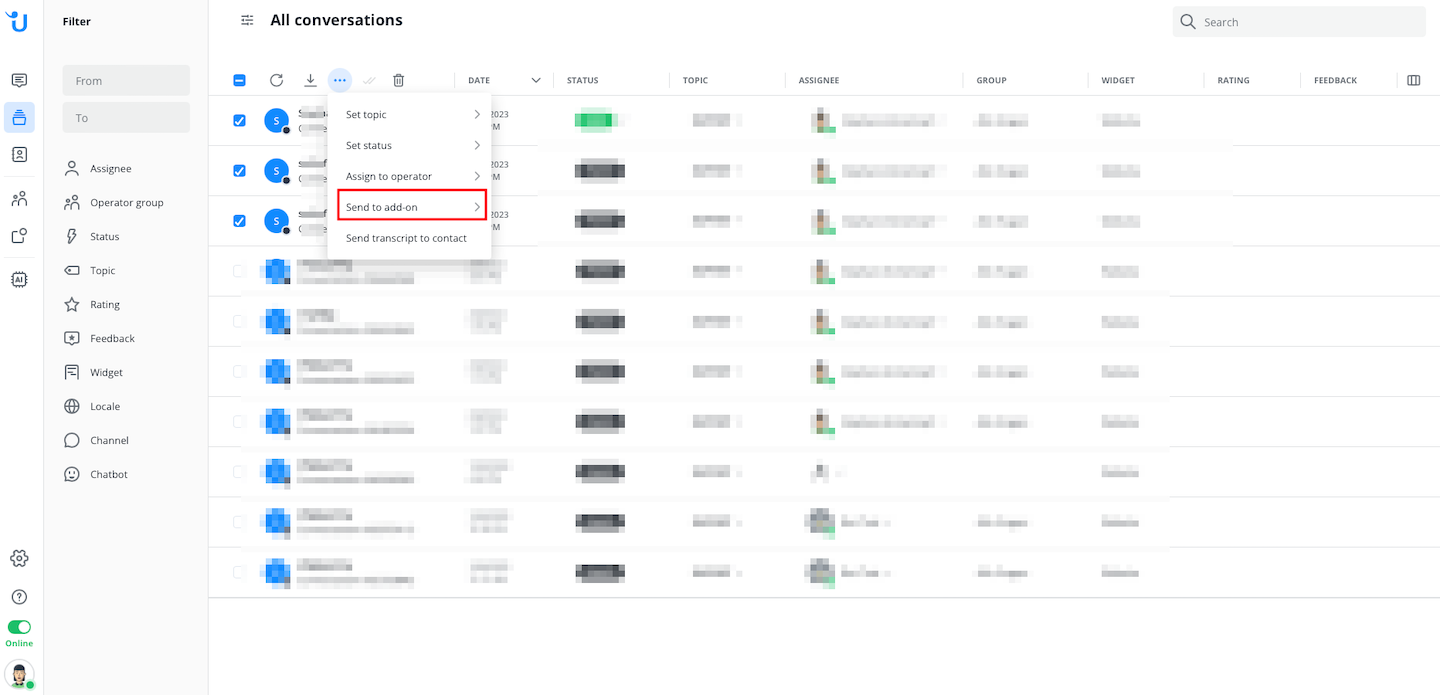
Please ensure that the contact's email address is included in the contact details so that the ticket can be sent to Lime CRM.
Sending conversations automatically
Instead of sending each conversation by hand, you can let Lime Connect send it for you. Once you have completed Step 2, ended conversations then appear in Lime CRM without any action by an operator. One condition decides whether an object is created: the topic of the conversation must be mapped in Lime CRM.
You need write permission for add-ons to change these settings. Without it, the form is shown but disabled, so ask an administrator of your account.
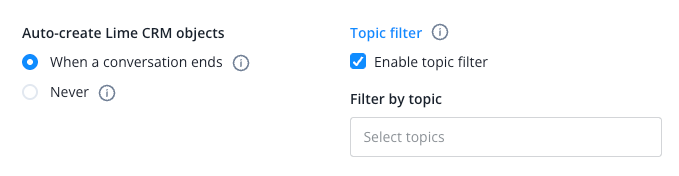
Go to Add-ons and select Lime CRM. This is the page where you entered your credentials in Step 2. There you find Auto-create Lime CRM objects with two options:
- When a conversation ends: each conversation is sent to Lime CRM once it has ended. This includes conversations that the AI Agent resolves on its own.
- Never: operators send conversations to Lime CRM manually, as described above.
Three settings use the word topic, and they do different things. The topic mapping in Lime CRM decides whether an object is created. The default topic of your widget tags all conversations held on that widget. The topic filter limits which conversations are sent.
If you only want some conversations to be sent, tick Enable topic filter below the options. Then select the topics under Filter by topic. Only conversations tagged with at least one of these topics are sent automatically. To see or create topics, go to Chat tools > Topics.
Lime CRM only creates an object if the topic of the conversation is mapped in Lime CRM; otherwise no object is created. To make sure your conversations carry a topic, set a default topic in your widget. You can do this before or after you save: open your widget, go to Widget settings > General and fill in Default topic.
Click Update (or Enable, if you have not turned the add-on on yet) to save your choice.
Payload example
You can find an example payload of a short conversation
by opening this toggle point.