
The phone channel is currently in Alpha state and not publicly available yet. Please reach out to your account manager if you want to test it.
You can find more information on requirements here, please read first:
 Connect your phone number via SIP-Trunk
Learn in this tutorial how to set up your own AI Voice Agent for phone customer support. We guide you step-by-step to create an intelligent phone bot that handles calls naturally.
The calls are handled by one of your AI Agents in combination with your SIP provider. While you are technically able to have the same AI Agent handle phone and text-based conversations at the same time, we recommend to add a specific AI Agent to exclusively handle calls.
First, create a new phone channel in your Lime Connect Dashboard.
- Navigate to Settings » Channels » Phone in your Lime Connect Account.
- Click the “+ Add” Button to create a new Phone Channel.
You can find explanations below the following screenshots (can be enlarged via double click):
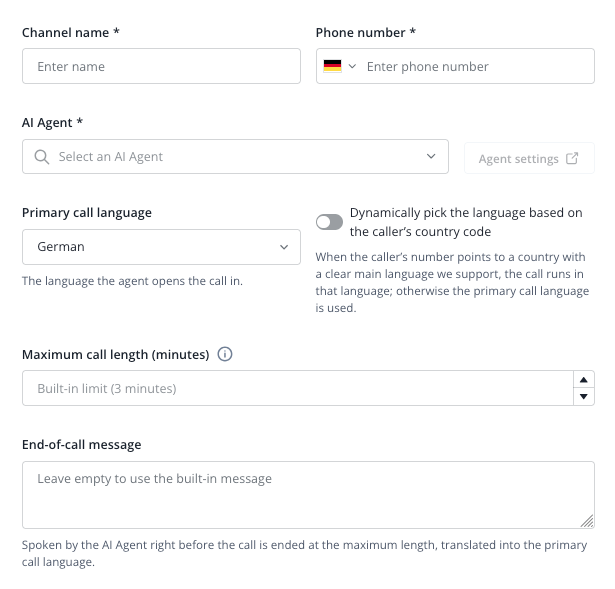
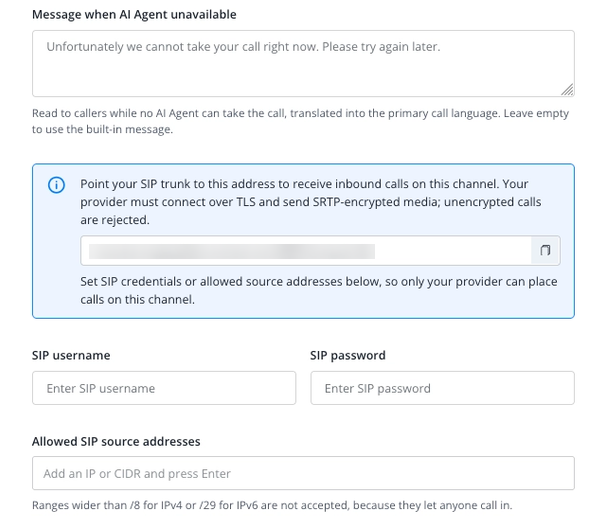
General & Agent Configuration
- Channel name *: Enter a descriptive internal name for this communication channel (e.g., Testing Voice Channel or Main Support Line).
- Phone number *: Enter the phone number associated with this voice channel, including the country code (e.g., +49 221 12345678.)
- AI Agent *: Select the specific AI Agent that will manage and answer incoming calls. You can click Agent settings to modify its behavior, actions, guidelines and knowledge base.
- Primary call language: Choose the default language the agent will use to open and conduct the conversation.
- Dynamically pick the language based on the caller’s country code: Toggle this on if you want the system to automatically match the call language to a supported main language derived from the caller's country code. If unavailable, it defaults to your primary call language.
- Maximum call length (minutes): Define a time limit for how long a single support call can run before it automatically disconnects (if you do not enter anything, the default maximum length is activated, currently this is 3 minutes).
- End-of-call message: Type a custom closing statement for the AI to speak right before the call terminates at the maximum length. Leave blank to use the built-in system message.
- Message when AI Agent unavailable: Enter a fallback message (e.g., "We are not available at the moment. Please try again later") to be read to callers if no agent can take the call.
SIP Trunking & Security Configuration
- SIP Trunk Address: Point your telecom/SIP provider to this provided URL (for example
sip:voice.your-company.com:5061;transport=tls) to route inbound calls. Note that your provider must connect over TLS and send SRTP-encrypted media. Find more information here:
- SIP username: Enter the authentication username provided or required to secure your SIP trunk connection.
- SIP password: Enter the security password for your SIP trunking credentials. Leave blank if you are updating settings and want to keep your current password.
- Allowed SIP source addresses: Input the trusted IP addresses or CIDR blocks if you want to have an extra security layer to your setup. This ensures only your official provider can connect. (Note: Ranges wider than /8 for IPv4 or /29 for IPv6 are rejected for security reasons.)