
In this tutorial, we describe how you can create and configure a new AI Agent.

To get started, click on the "AI" icon in the left menu.
Then switch to Settings > AI Agent
Creating a New Agent
Use the Add button to create a new AI Agent.
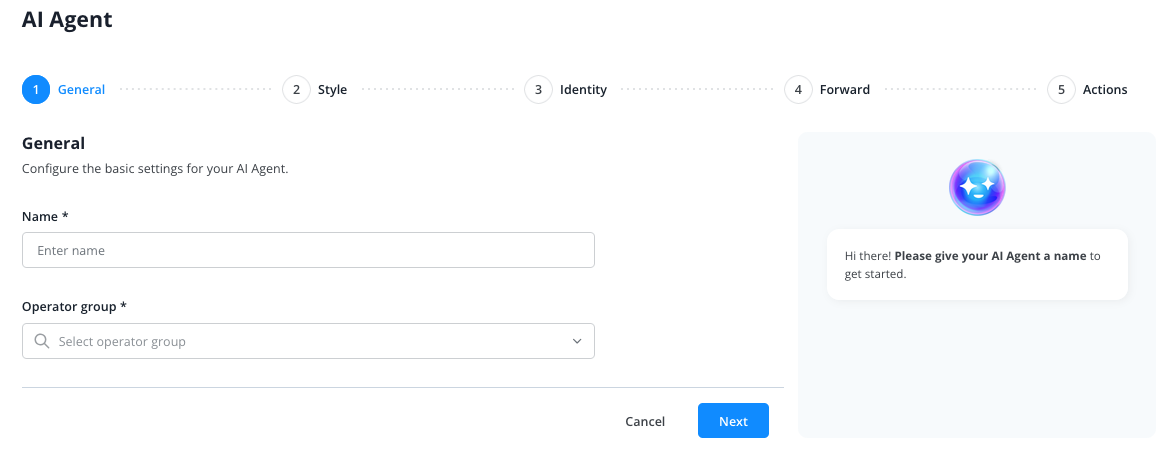
Give the agent an internal name and make the necessary settings:
- Style
- Identity
- Escalation on poor rating
- Access to system actions
Every new AI Agent automatically has access to the entire content of your knowledge base. If you want to impose restrictions here, you can do so via a system action that provides the agent with only part of the knowledge base.
Settings
After creating the agent, you will return to the agent overview.
Now click on the name of the AI Agent you just created.
You will access the settings of this specific AI Agent:
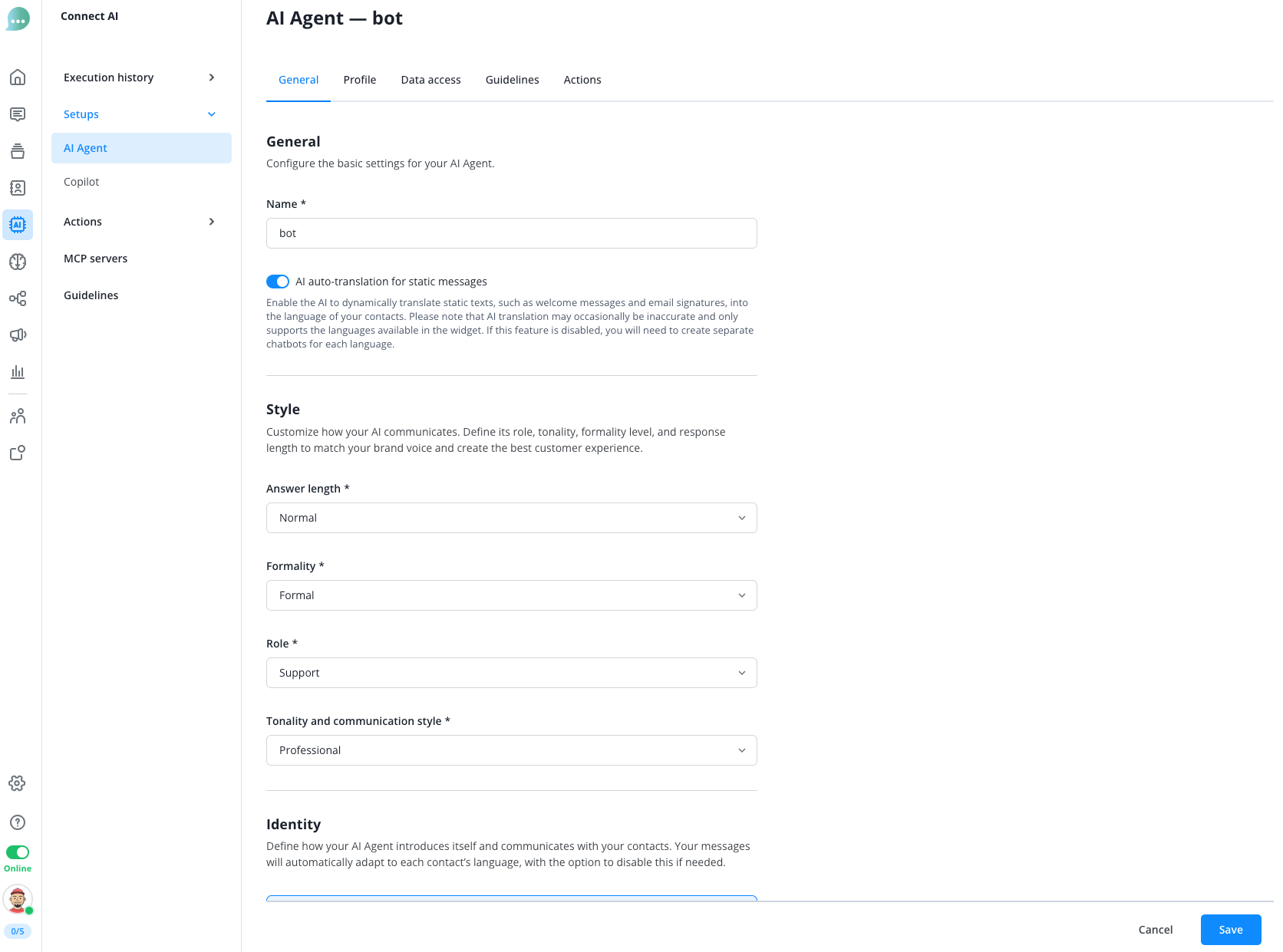
Here you can now also enrich the welcome message with images, videos, or buttons:
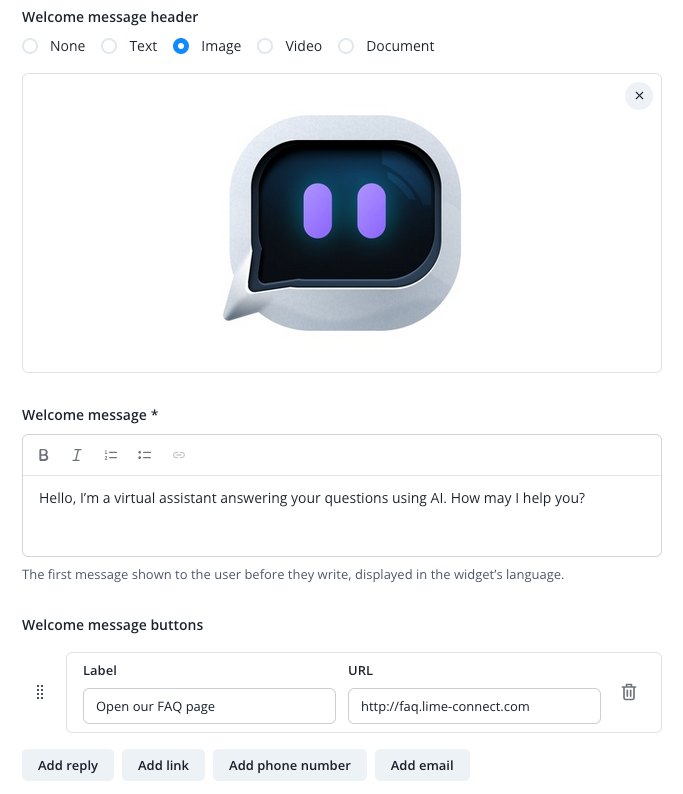
Then switch to the
"Profile" Tab
Here you can now make detailed settings for your agent.
Define
- what the agent should be called
- which operator group and time zone it should belong to
- which conversation timeout should apply to the agent
- which skills it should master (only in the Flex package)
- in which behavior mode it should operate
- which action it should perform when the timeout is reached
- whether the bot should use the widget's login mode
Further information can be obtained by clicking on the respective information buttons behind the options.
"Data Access" Tab
Select which of Lime Connect's data fields should be available to the AI when answering customer inquiries.
"Guidelines" Tab
Define which general behavioral instructions your AI Agent should follow.
"Actions" Tab
Here you can select which of the created system actions your AI Agent should master.