
Our AI Copilot is the integrated assistant for your operators.
Let our AI generate a response suggestion based on the customer's question and the data stored in the knowledge database.
Activate the feature in the Connect AI menu under Settings > AI Copilot
Creating a New Copilot
Use the Add button to create a new Copilot.
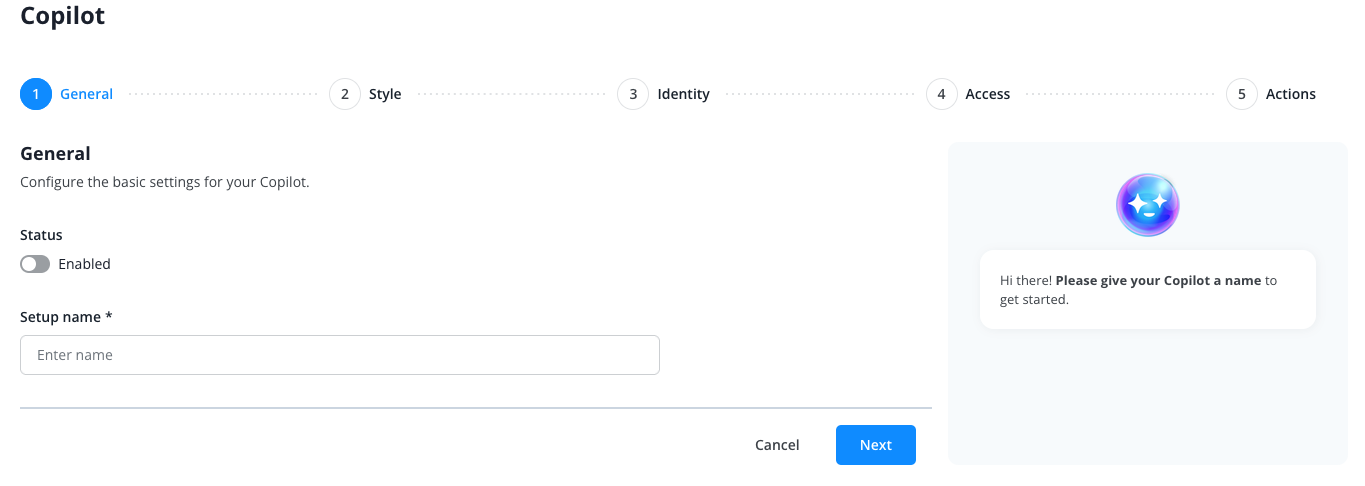
Give the Copilot an internal name and configure the necessary settings:
- Style
- Identity
- Operator access to this Copilot
- Access to system actions
Every new Copilot automatically has access to all content in your knowledge database. If you want to impose restrictions, you can do so via a system action that only makes a portion of the knowledge database available to the Copilot.
Settings
After creating the Copilot, you'll return to the Copilot overview.
Now click on the name of the Copilot you just created.
You'll enter the settings for this specific Copilot.
Here you can modify the general settings.
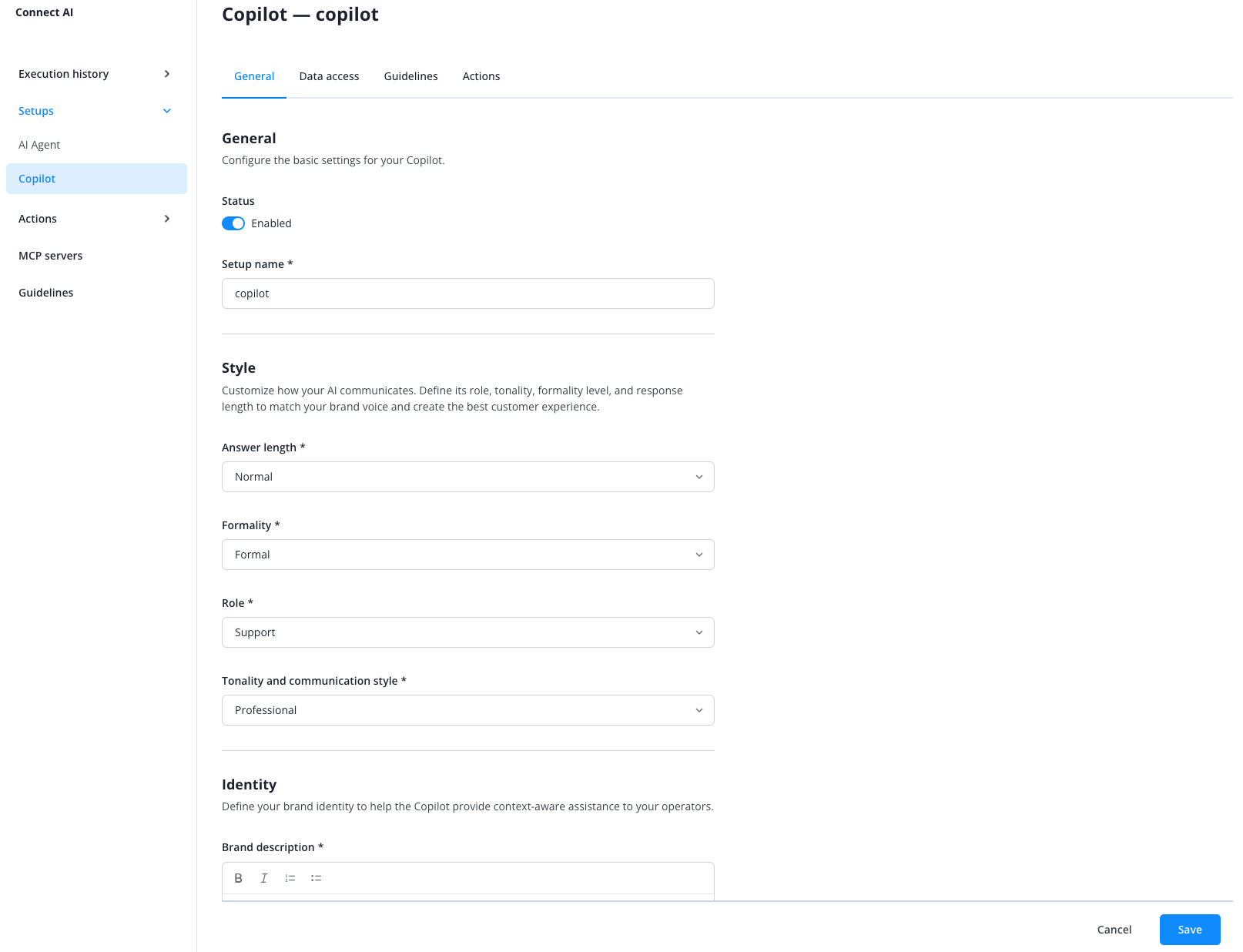
At the top, you now have several options in the horizontal menu:
"Data Access" Tab
Select which of Lime Connect's data fields should be available to the AI when answering customer inquiries.
"Guidelines" Tab
Define which general behavioral instructions your Copilot should follow.
"Actions" Tab
Here you can select which of the configured system actions your Copilot should be able to perform.