
To add, edit or delete templates, go to Channels > Messaging apps, open your WhatsApp channel settings and switch to the MESSAGE TEMPLATES tab. Here you’ll find an overview of all your templates and their most important information.
The section "Who sees which template?" below explains what the visibility setting does, and "How do I change who sees a template?" at the end of the page shows where to set it.
Adding new templates
Click on Add template in the template overview.
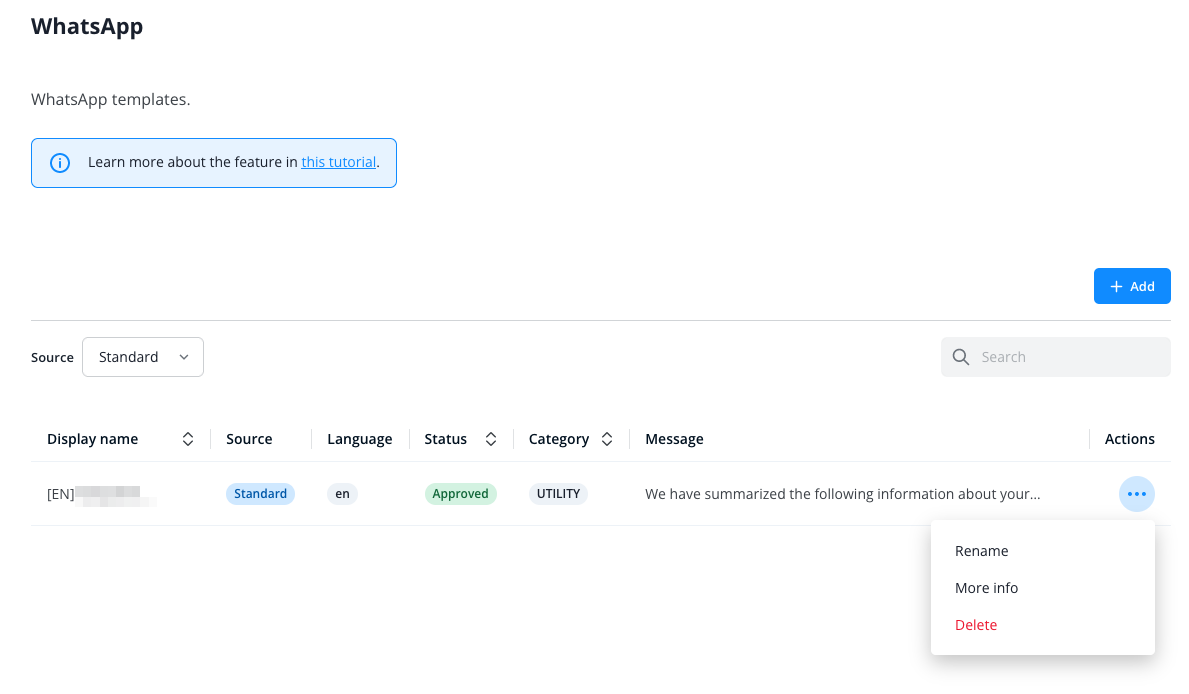
Next fill in all the fields:
Template name: Choose a descriptive title for your template, so it’s easy to recognize for operators in the template selection during conversations (more on that later). You can edit your template’s name at any time.
Language: Select the language the message’s text is written in.
Category: Select a category that reflects the topic of your message. The available options are provided by WhatsApp.
Visible to: Choose which operators are offered the template in the Message Center. The default is "All operators". If you choose "Selected operator groups", the field "Select operator groups" appears below it; select one or more operator groups there. Operator groups are managed in the settings under "Team" > "Operator groups", and every operator belongs to exactly one of them. The number in brackets after each group name is how many operators the group has. You can change the visibility at any time, as described under "How do I change who sees a template?" at the end of the page. What the setting does is explained in the section "Who sees which template?" further down.
Text: The actual message that you’ll send to contacts. Just like the language and category, it cannot be edited once it’s set.
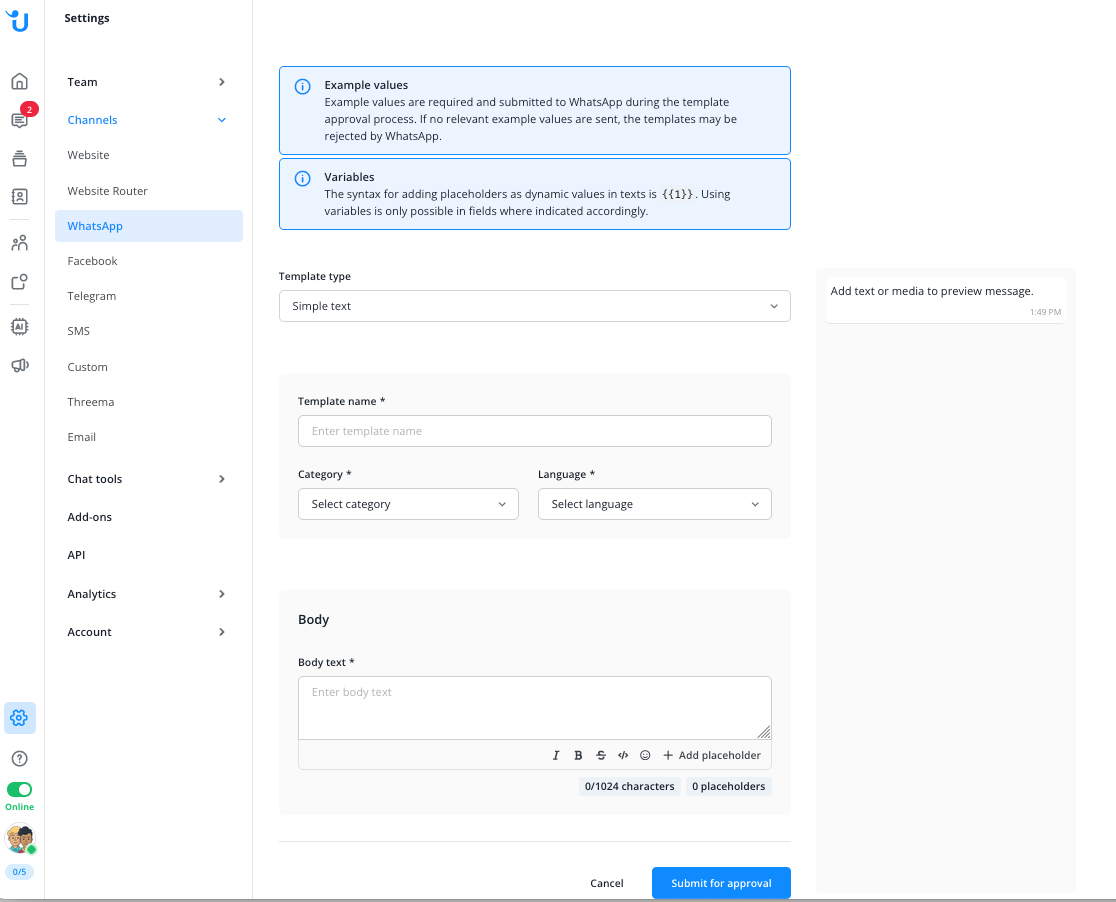
Placeholder (optional):
Placeholders allow you to personalize your message by inserting your
contact’s name, email address, customer ID, the assigned operator’s
name, or the conversation subject. Make sure to include the placeholder itself (e.g.
{{1}}) in your message.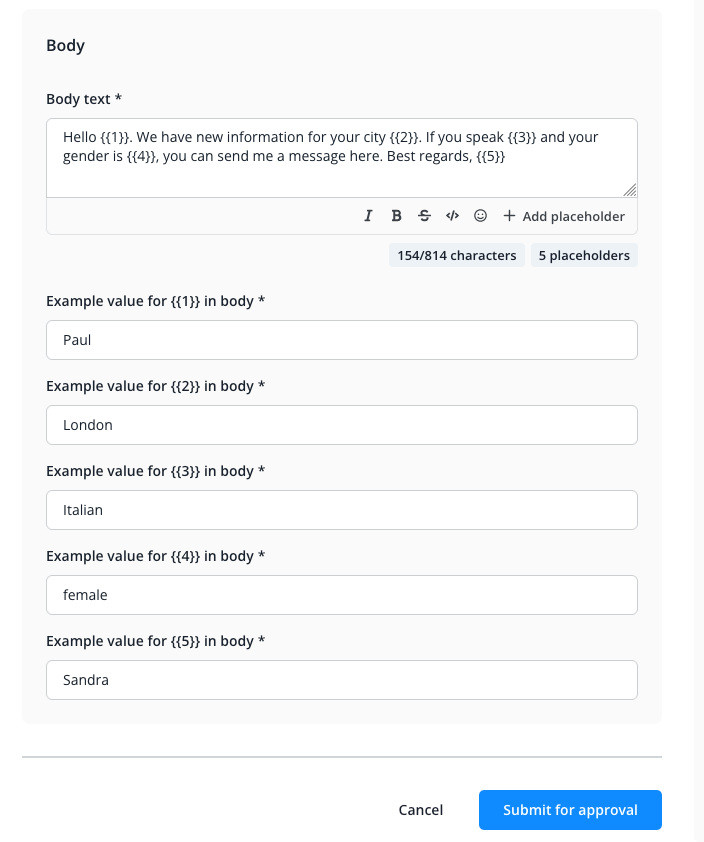
You can change the placeholders later on. Since this is not the case for your message, make sure that it contains all the placeholders you wish to use and that they’re positioned in the right place.
Placeholders can be used multiple times in a message, but the total number of placeholders you add must always match the number of placeholders you use your message. So if you don’t need a placeholder after all, just delete it.
Finally, click CREATE TEMPLATE to submit it for review by WhatsApp. This typically takes less than a day. You can monitor all your templates’ status in the lower part of your channel settings.
More information on placeholders can be found in our FAQ article.
Editing and deleting templates
If your role has "Chat settings" set to "Edit", you see a three-dot menu to the right of each template in the template overview, as in the first screenshot above (the WhatsApp Campaigns variant is described at the end of this page). The menu offers:
- Rename: change the template's name.
- Edit visibility: choose which operators see the template, as described under "How do I change who sees a template?" below.
- More info: view the template's details.
- Edit placeholder defaults: for an approved template with placeholders, set the values its placeholders are pre-filled with. This changes only those values, not which placeholders the text contains. The Message Center pre-fills them when an operator sends the template, and WhatsApp Campaigns and the workflow node "Send WhatsApp template message" use them wherever they do not set values themselves.
- Delete: delete the template.
The text, language and category cannot be changed.
Who sees which template?
When a channel has many templates, not every team needs all of them. With "Visible to" you decide which operators are offered a template in the Message Center:
- All operators: every operator sees the template. This is the default for new templates, and all existing templates are set this way until you change it.
- Selected operator groups: only operators who belong to one of the selected operator groups see the template.
Every operator belongs to exactly one operator group, and the field "Select operator groups" offers the same groups as "Team" > "Operator groups" in the settings.
Operators open the template selection, the "Choose a message template" window, from a conversation: with "Send message" when the conversation's 24-hour service window has closed, or with "Select template" in the message box. There, each operator sees the templates of their own operator group and the templates visible to all operators. This applies to all three tabs, "Recently used", "Favorites" and "All templates", and to the Mobile App as well. The page "WhatsApp’s 24-hour service window" explains the 24-hour service window and how to send a template once it has closed. If you move an operator to another operator group, the template selection shows the new group's templates the next time they open it.
A template only appears in the template selection once WhatsApp has approved it. You can set its visibility before that, for example when you create it.
A template that an operator marked as a favorite and that is no longer visible to their operator group disappears from their favorites. Once it is visible again, it is back among their favorites.
If the channel has approved templates but none of them is visible to the operator's group, the template selection shows the notice "No templates are available for your operator group." The operator then cannot send a template from that conversation.
An operator who sees this notice should ask someone whose role has "Chat settings" or "Campaigns" set to "Edit". That person can make a suitable template visible to the operator's group; see "How do I change who sees a template?" below (the WhatsApp Campaigns route is in the last paragraph of that section).
Visibility only decides what the template selection in the Message Center and the Mobile App offers. It is not a permission: in WhatsApp Campaigns and in the workflow node "Send WhatsApp template message", all templates are still available.
What happens when I delete an operator group?
Before you delete an operator group, note which templates list it in the "Visible to" column of the template overview.
When you delete the group, those templates also become visible to your default operator group. The delete dialog says that the group's operators are moved to your default operator group, but it does not name that group: it is the oldest of your remaining operator groups. The moved operators keep seeing their templates, but all other operators in the default operator group now see them too.
After deleting, change the visibility of the templates you noted where needed, as described under "How do I change who sees a template?" below.
How do I change who sees a template?
To change the visibility in your WhatsApp channel settings, your role needs the right "Chat settings" set to "Edit". Without it, you see the "Visible to" column but cannot click it, and the templates have no three-dot menu. Your role is shown in the settings under "Team" > "Operators" in the "Role" column, and what each role may do under "Team" > "Roles". If you cannot open these pages, ask whoever manages your team.
In the template overview, the "Visible to" column shows who sees a template: "All operators" or the names of the selected operator groups. With more than two groups, it shows two names and a count for the rest, for example "+2", as in the first screenshot above. Hover over the count to see all names.
In the template's row, click the entry in the "Visible to" column, or choose "Edit visibility" in the three-dot menu. The "Edit visibility" window opens.
Choose "All operators" or "Selected operator groups". For "Selected operator groups", select at least one operator group in the field below. Then click "Save".
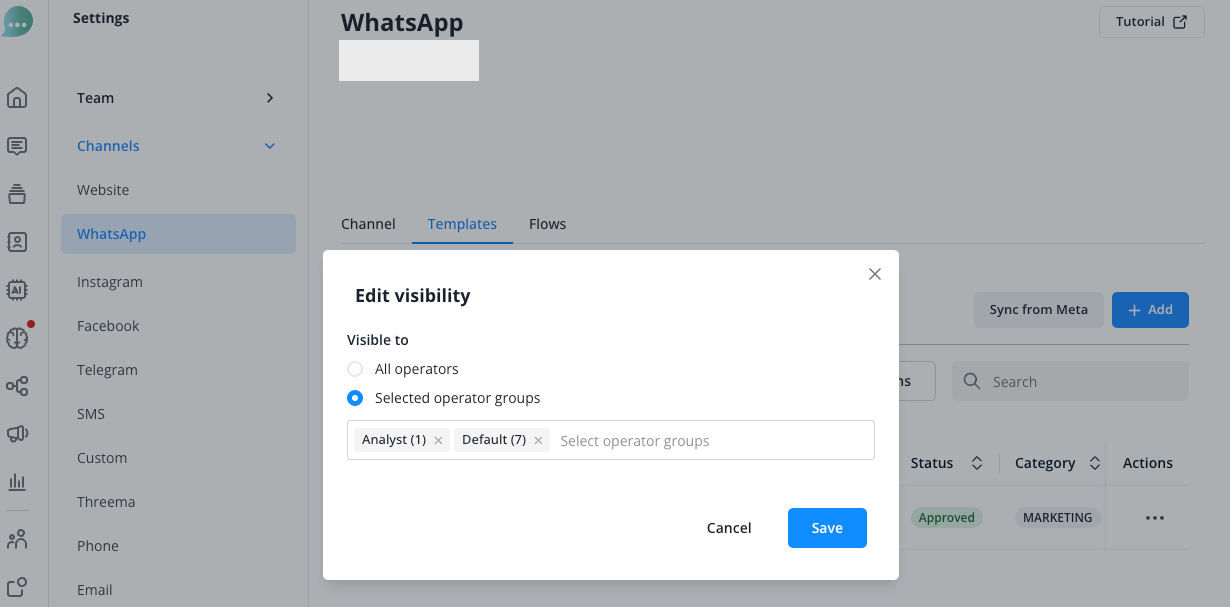
Operators see the change the next time they open the template selection; they do not need to reload the page.
If no operator group is selected, the window does not save and shows "Select at least one operator group."
The same "Visible to" column is in WhatsApp Campaigns under "Templates". To change the visibility there, your role needs "Campaigns" set to "Edit". There, too, visibility only decides what the template selection in the Message Center and the Mobile App offers; campaigns can still use every template.