
On the WhatsApp channel, you can directly answer your contacts within 24 hours following their last message. After that, WhatsApp requires you to get their consent before you send further messages. It’s a measure to protect their users from unwanted marketing.
To get permission, or to simply share some important information with the contact, you can send any message template that has been approved by WhatsApp and is visible to your operator group. Every operator belongs to exactly one operator group: yours is shown in the settings under "Team" > "Operators" in the "Group" column, and the groups are managed under "Team" > "Operator groups". To learn how to manage templates and set which operator groups see them, see "Managing message templates".
Once a conversation's 24-hour service window has expired, the Message Center shows a green WhatsApp notice at the bottom of the conversation: the conversation window is closed, and you reopen it by sending a message template. Click "Send message" in the notice to select one of your templates. This button only opens the template selection; nothing is sent until you click "Send" in the next window.

.
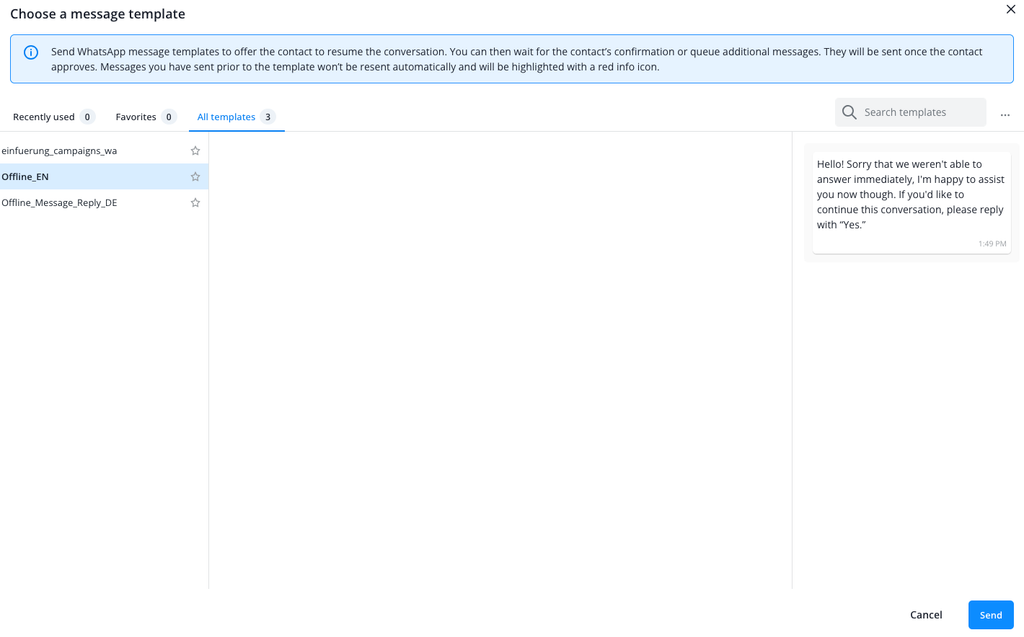
The "Choose a message template" window opens. On the left you see the list of your templates, on the right the preview of the message. If your window shows no tabs and no list, see the end of this page. Above the list, you choose between three tabs, each showing how many templates it holds. All three only show templates that are visible to your operator group:
- Recently used: up to 20 templates you sent most recently, the latest at the top.
- Favorites: the templates you have starred.
- All templates: all templates that have been approved by WhatsApp. [Managing message templates]
Your operator group decides which templates you see; roles decide who may change that. It is set on each template with the "Visible to" setting: by default it is "All operators", so every operator sees the template, but it can be restricted to selected operator groups. So "All operators" is a setting on the template, not a tab, and not the same as "All templates".
If you have already sent at least three different templates that are visible to your operator group, the window opens on "Recently used", otherwise on "All templates". When you open a tab, its first template is already selected, so you see the preview straight away. Favorites and recently used templates are personal: each operator sees only their own.
To add a template to your favorites, click the star in its row. A second click removes it from your favorites again. A template you remove from your favorites stays under "Recently used" if you sent it recently.
A template you starred or sent recently disappears from "Favorites" and "Recently used" when it is restricted to other operator groups or when you are moved to another operator group. Once it is visible to your operator group again, it is back there too.
To find a specific template, type a term into the "Search templates" field. The search applies to all three tabs. In the three-dot menu next to the search field, choose under "Template source" which templates are shown: "All", "Standard" or "Campaigns". "Standard" are the templates from your WhatsApp channel settings, "Campaigns" the templates from WhatsApp Campaigns. "All" here has nothing to do with "All operators".
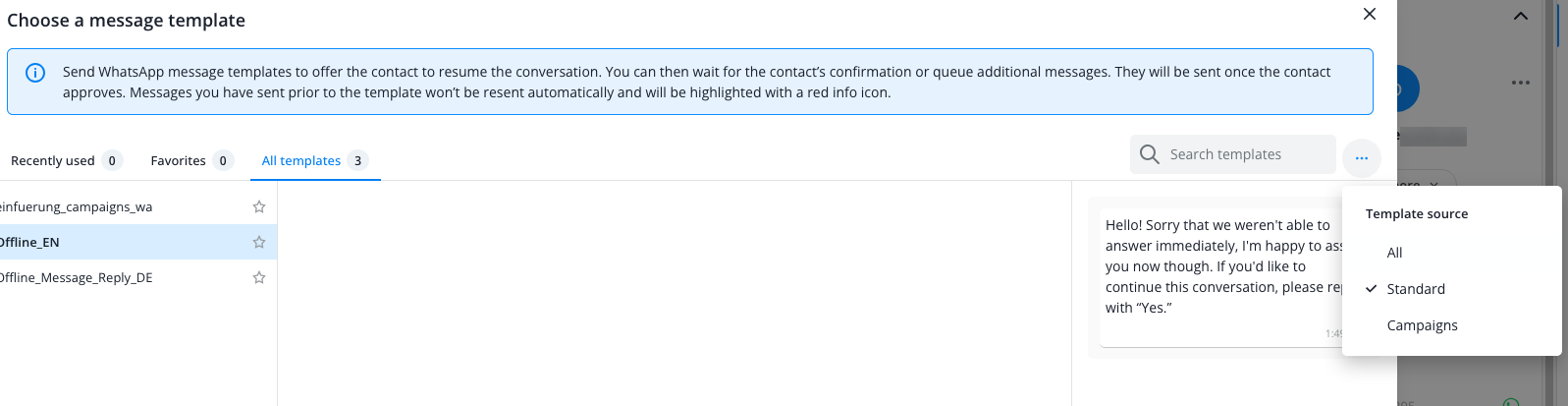
Click the template you want to send in the list.
If the template has placeholders, fill them in in the fields next to the list.
The preview also helps you compare templates, but take care: when you move the mouse over the list or step through it with the arrow keys, the preview shows the template you are on. Your selection does not change, and any values you have already filled in for the selected template are kept.
Before you send, check the preview to make sure the message looks the way your contact should receive it.
Then click "Send" to send the template to your contact.
The template selection in the Mobile App has no tabs, no favorites and no template source menu: it shows a searchable list of all approved templates that are visible to your operator group. Tap a template to open it; if it has placeholders, you fill them in there.
While waiting for your contacts’ permission, you can already send messages. They’ll be delivered as soon as your contacts have agreed. Note that any messages you sent prior to your permission request will not automatically be re-sent.
If the channel has approved templates but none of them is visible to your operator group, the "Choose a message template" window looks different: there are no tabs, the search field is disabled, an info box with the text "No templates are available for your operator group." takes the place of the list, and the preview only reads "Select a template to see the preview of your message." In the Mobile App, the list is replaced by the same message, "No templates are available for your operator group." You then cannot send a template from this conversation. If the channel has no approved template at all, the Message Center shows a different warning instead: "There is no approved template. Wait until an existing one is approved or create new template in Templates."
In that case, ask someone whose role has "Chat settings" or "Campaigns" set to "Edit", usually whoever manages your team. They can make a suitable template visible to your operator group, as described in the section "Who sees which template?" on the page "Managing message templates". In the Message Center, you see the template the next time you open the template selection; you do not need to reload the page.