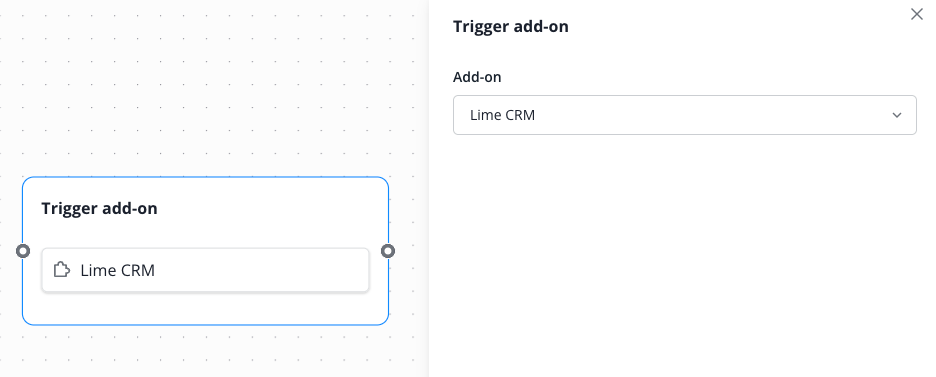
You can enlarge all screenshots by clicking on them. The screenshots show the node itself as well as the corresponding settings menu.
Start Conversation
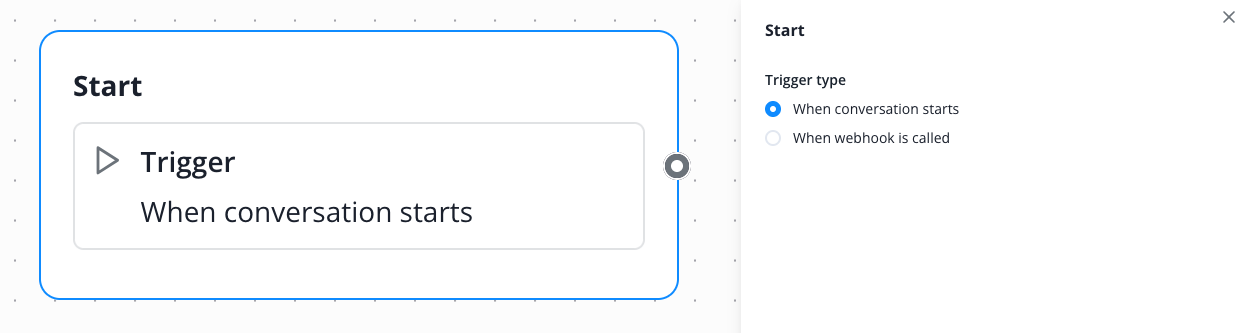
A workflow can be started either by the contact manually starting a conversation, or by an external trigger via webhook call (currently in beta status).
Start by new conversation, triggered by the contact
Let's assume you operate a website. Our website chat is embedded on it. A contact starts a conversation via the chat button. A chatbot linked to the workflow guides the customer through the predefined process
This node is included by default in every workflow and cannot be further configured in this status.
Start by external trigger
Now let's assume, on the other hand, that you use a system independent of Lime Connect, based on whose data you want to trigger an automated workflow in Lime Connect.
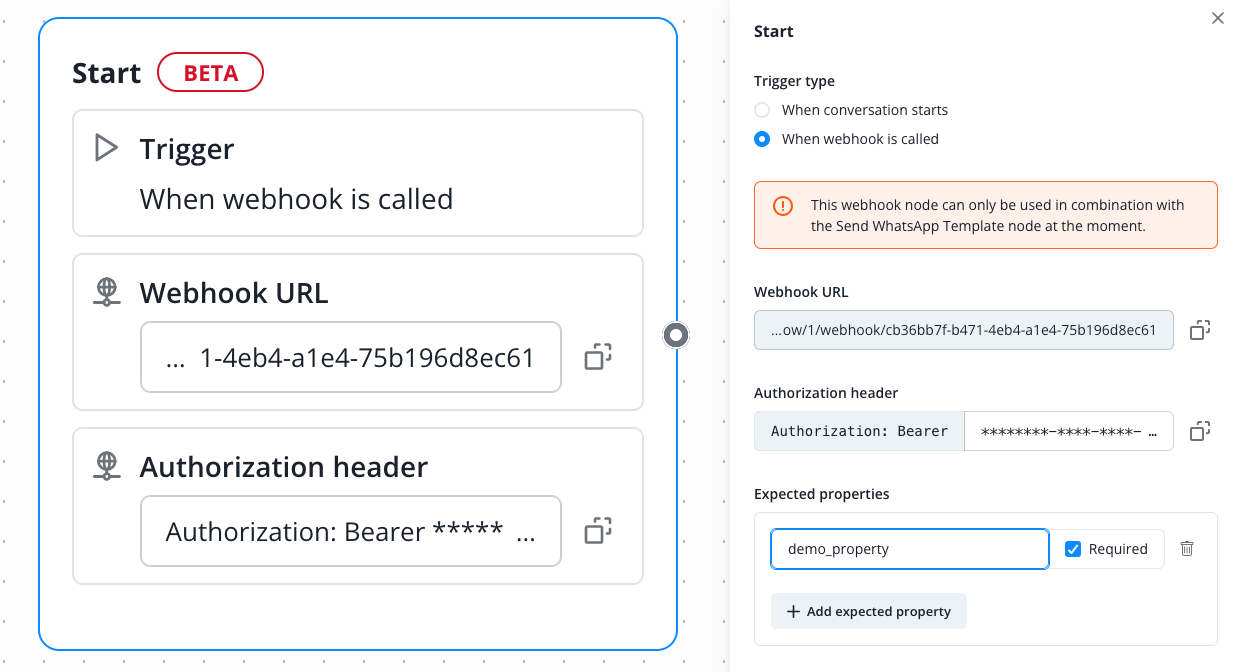
In this case, it's not the contact who starts the workflow, but a previously defined (programmed) event in your third-party system, which is transmitted to Lime Connect via interface.
If you want to start the workflow through an external trigger, you need programming experience and experience in handling interfaces.
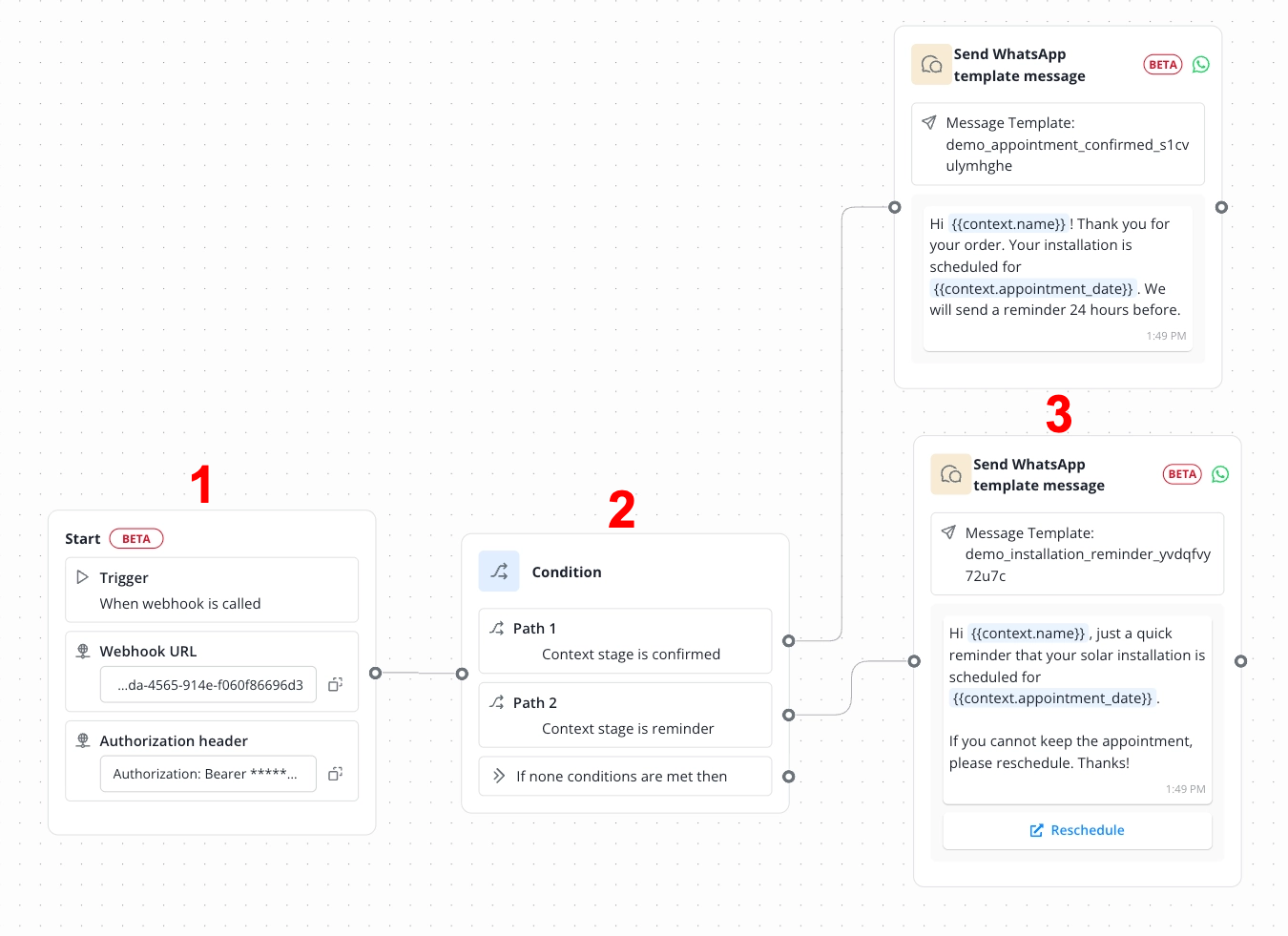
Currently, the webhook trigger can only be used in combination with WhatsApp template nodes.
Here you configure the webhook URL as well as the authorization header. You also specify the expected data fields that will be transmitted to your system.
Use case example (open by clicking the arrow on the left)
Start by handing off from a Connect AI Agent
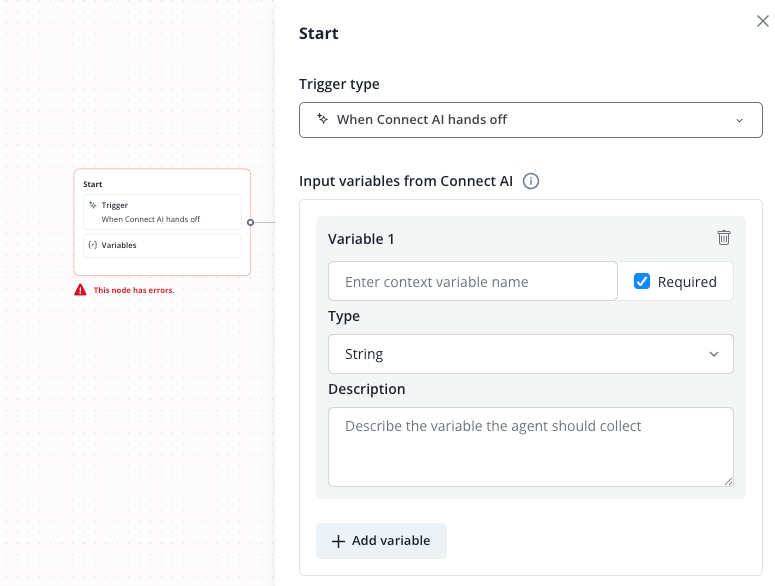
You can also trigger a handoff of the ongoing conversation from your Connect AI Agent to a workflow. For this, the Start node must be set to the corresponding type.
If needed, you can also pass data that your AI Agent has access to to the workflow. This data will then be available as variables within the workflow.
Condition
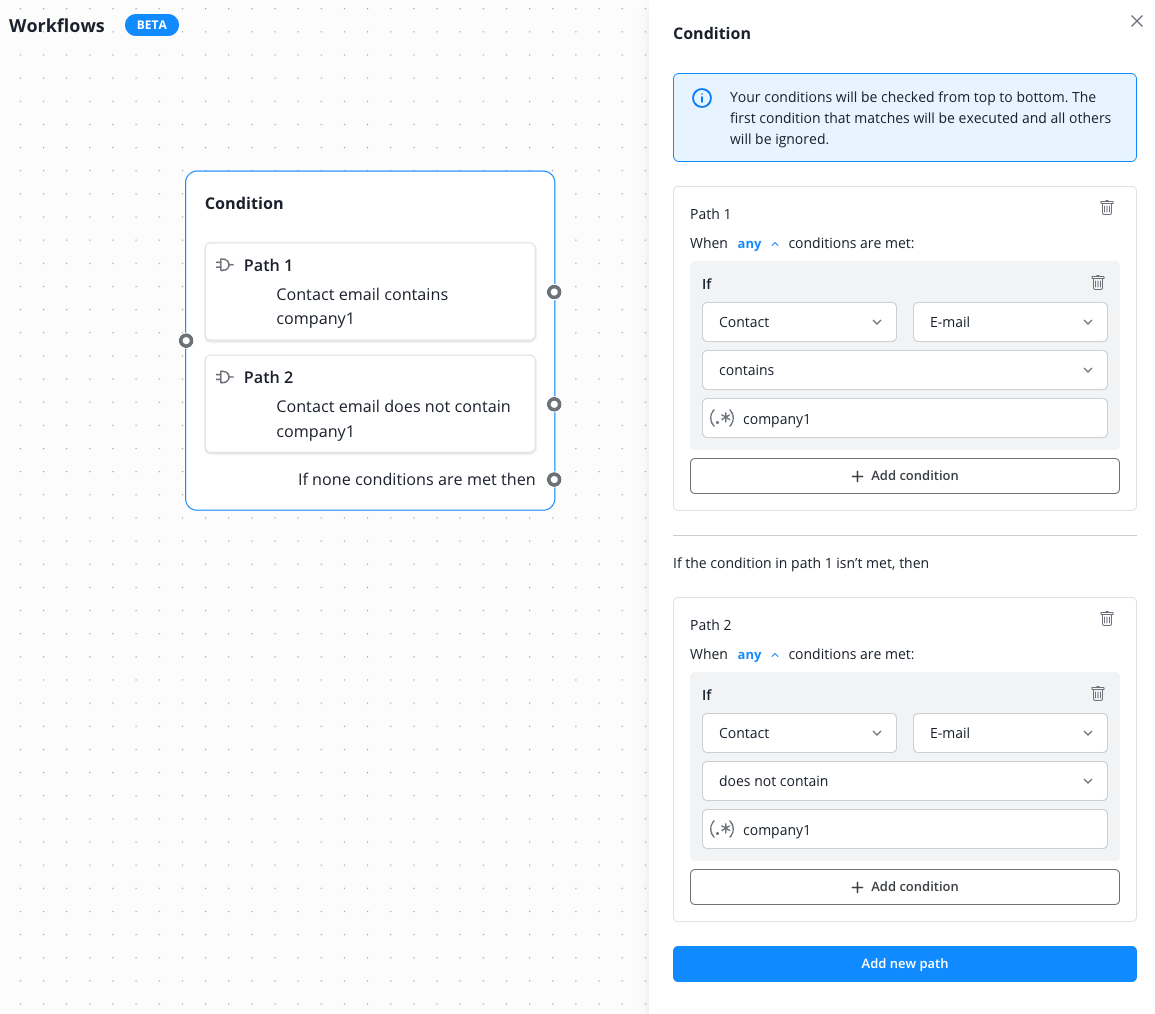
Use this node when you want to offer different paths based on a condition for the contact.
In our example: All contacts whose email address includes "company1" go path A, all other contacts go path B.
The conditions are executed by the system from top to bottom until a condition applies. All conditions after that are no longer executed.
Keyword listener
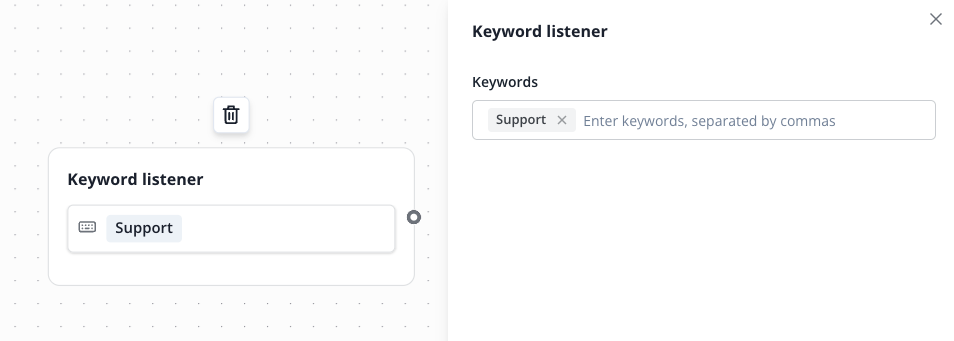
Use this node when you want to perform an action based on keywords you have defined.
In our example: As soon as the contact sends the keyword "Support", the action connected afterward is triggered.
Message
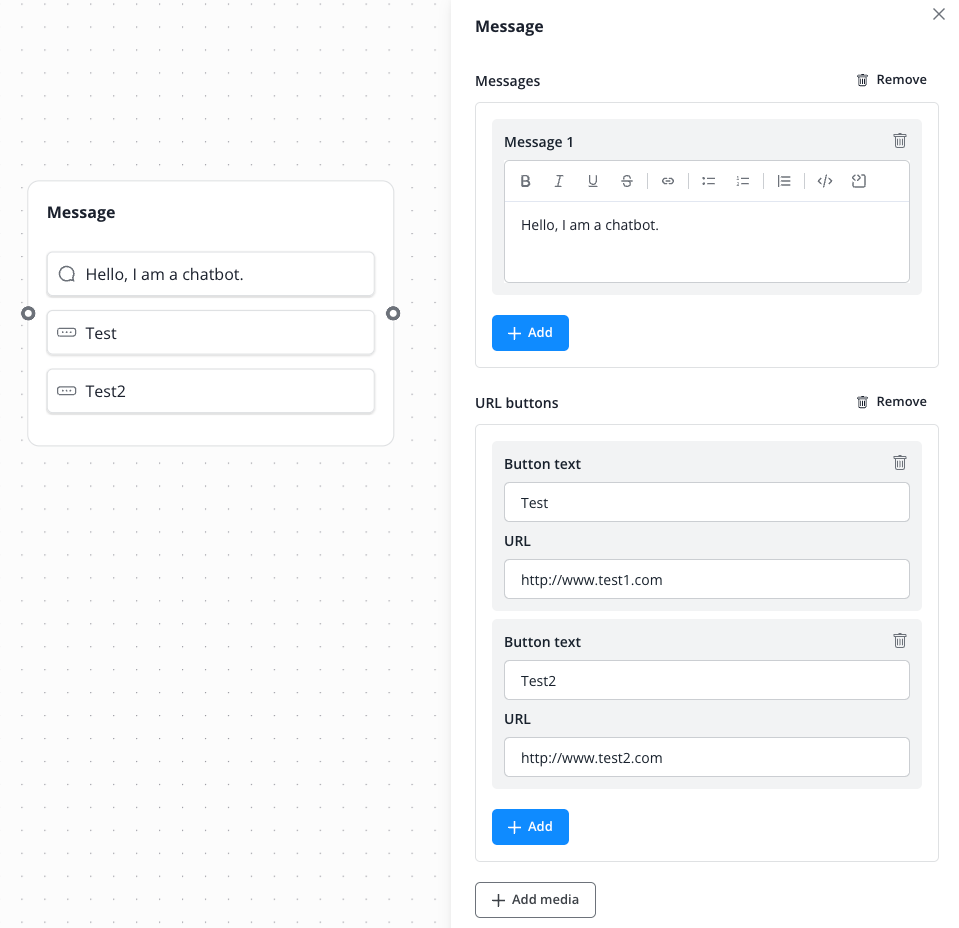
Use this node when you want to display one or more text blocks to your contacts. You can also add buttons or media.
In our example: After the text is displayed, the contact is shown two clickable buttons that lead them to the stored URL.
Trigger add-on
Use this node when you want to trigger an add-on offered by us during the conversation.
In our example: The Lime CRM add-on is triggered and the conversation is converted into a Lime CRM object. This happens in the background.