
Whenever you want to store inputs of your contacts temporarily or in their contact profiles, you need to use variables.
In our example, we want to save the contact’s email address, save it temporarily for this workflow and display this email address later.
So we pick a “Capture email node” and set the variable to email, or something similar. Make sure to name your variables in a way for you to not get confused if you use many variables in one workflow.
You can only use alphanumeric characters, “-” or “_” for variable names.
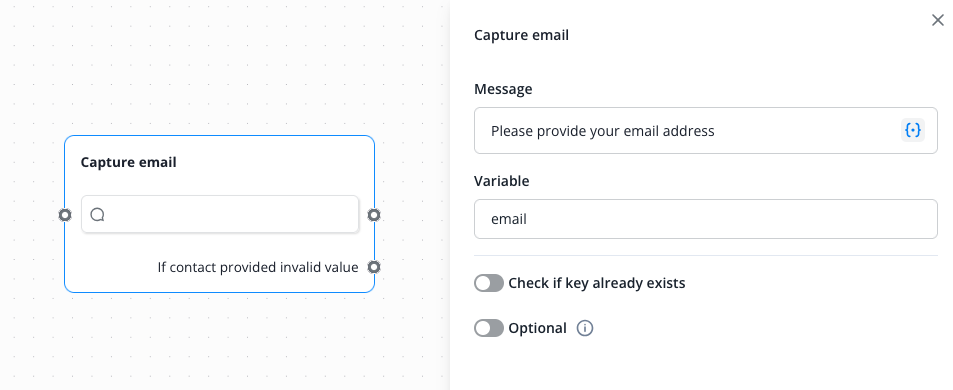
After this node and the set message is presented to the customer, he can enter his email address. The address is then saved in the variable “email”.
To use the variable later, you can choose it from the variables list by clicking the icon

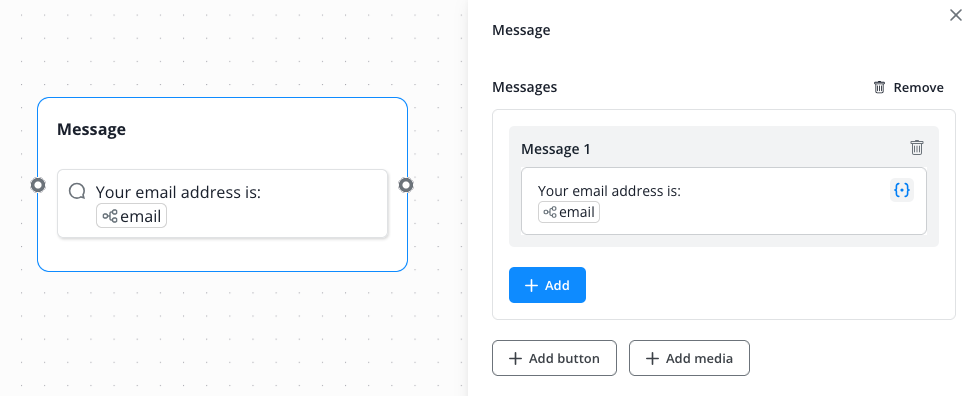
This is how it looks in a Message node for example. Click on the variables icon on the right.
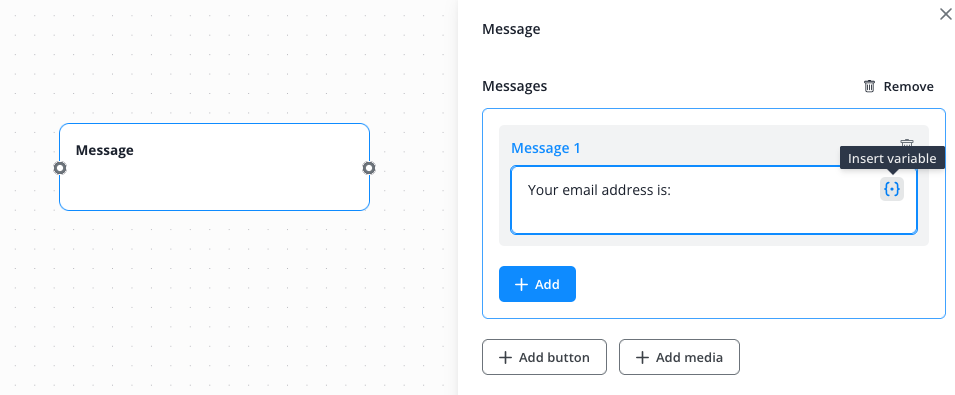
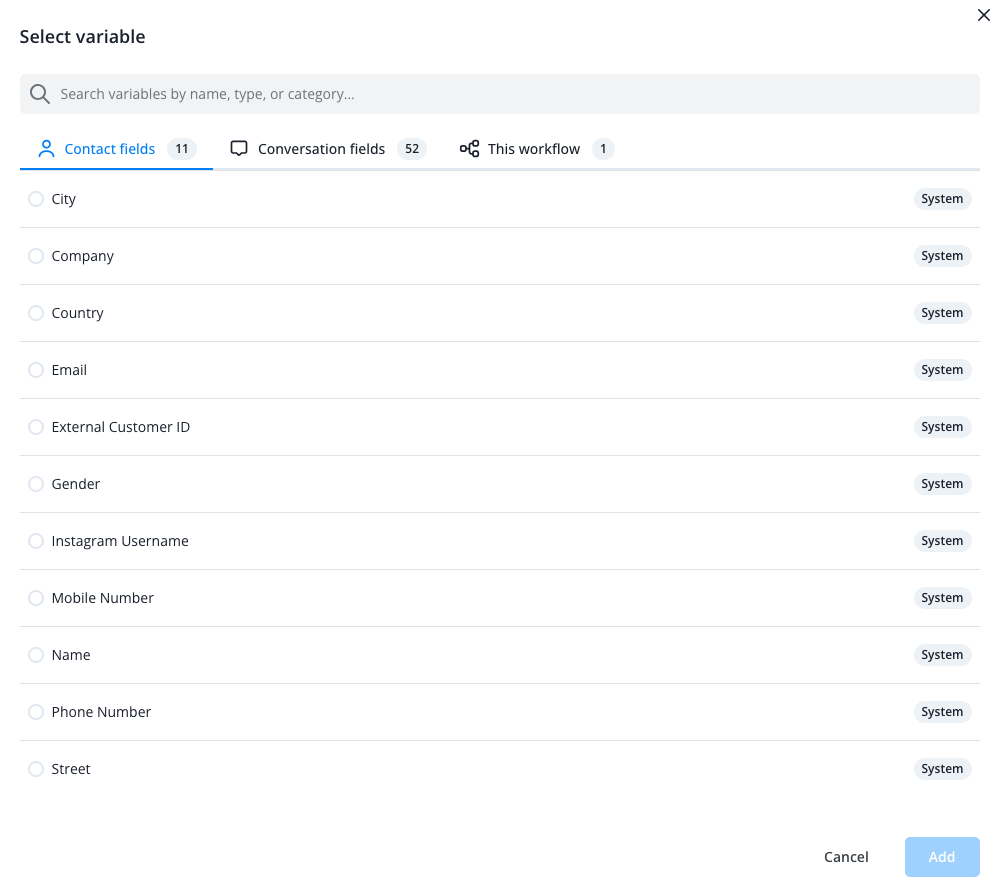
The variables menu opens. You now have all your system variables (contact and conversation fields) available, as well as those variables specifically set in this workflow.
To now display the value of the email variable, select the “This workflow” tab, then choose the email variable and click on the blue “Add” button.
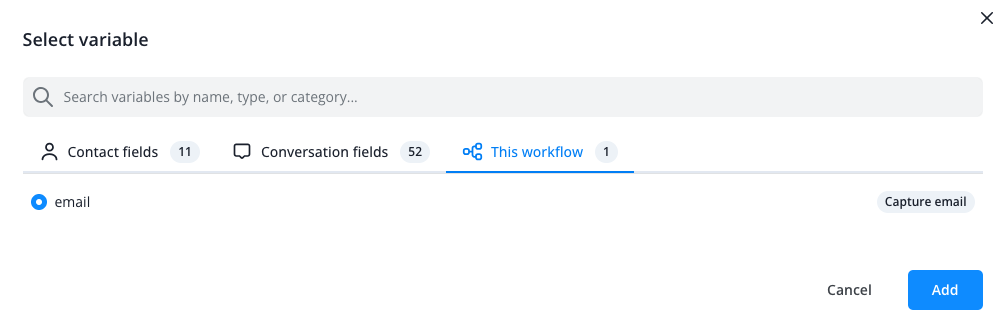
Now the variable was inserted and the contact will be presented with the set message text followed by the value of the variable.
You can make use of variables in almost every node type. The variables setup is similar to our example above.