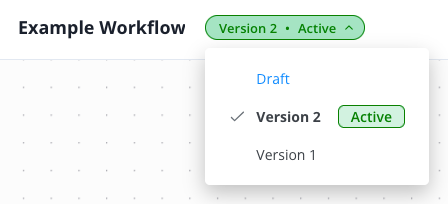
When ever you add a new workflow or work on an existing one, you can make use of our versioning system.
Adding a new workflow opens it in the “Draft” state. You can now work on it and save it with a click on the grey button in the upper right.
As soon as your workflow is ready, you can activate it by clicking the blue button.
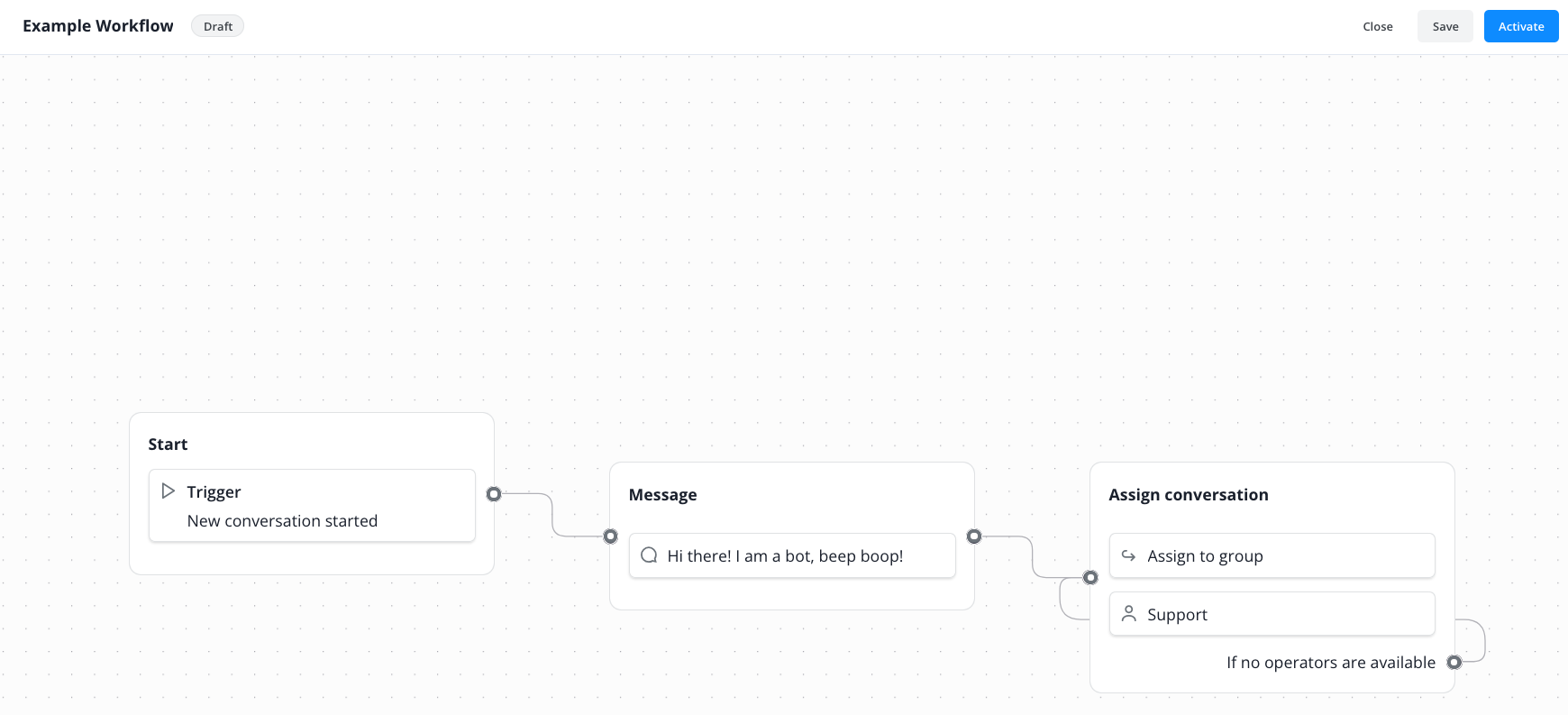
Activating a workflow removes the “Draft” state as you can now see in the upper left
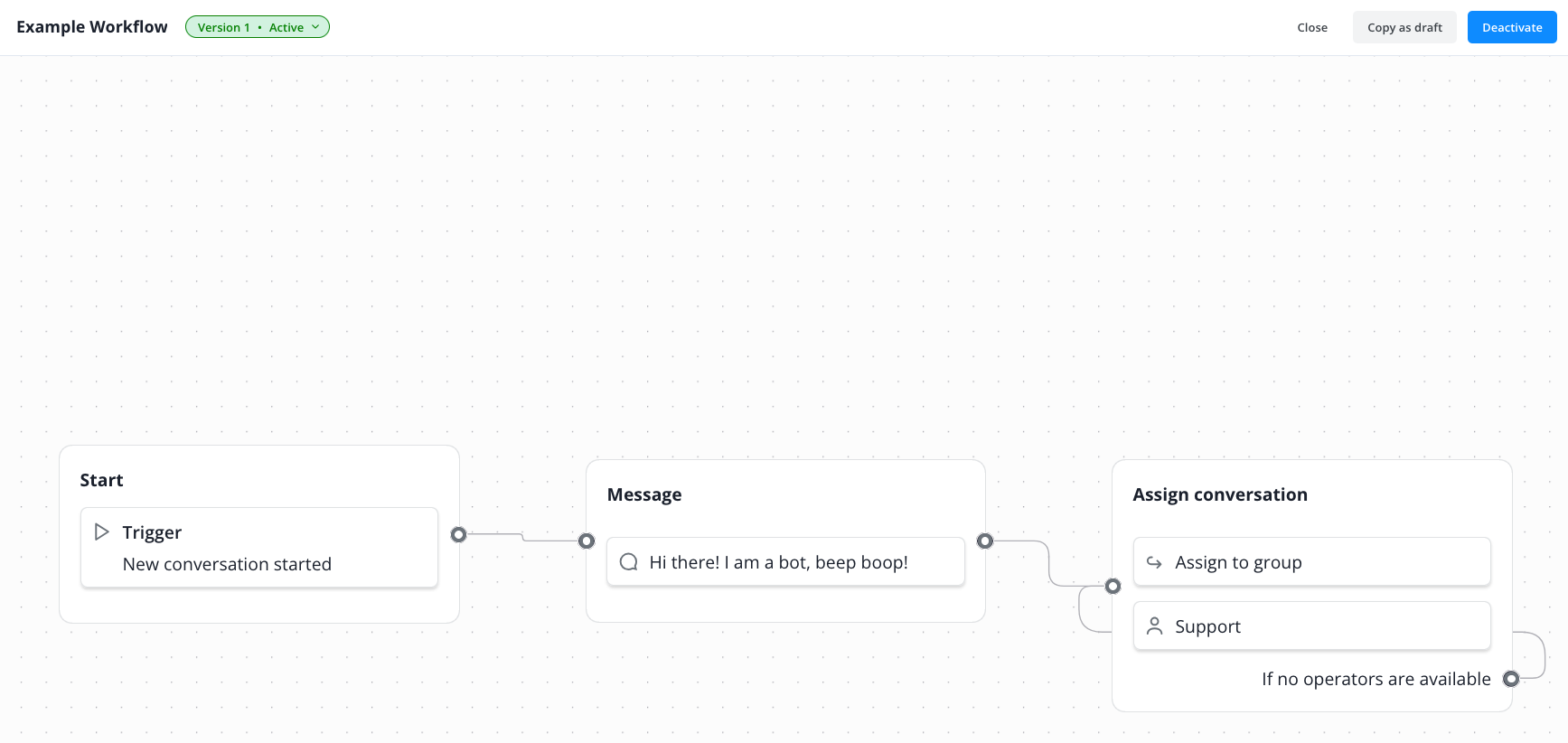
Should you want/need to edit your workflow later, you can always do so without affecting an activated workflow by switching back to a draft version
You can only update workflows in “Draft” state.
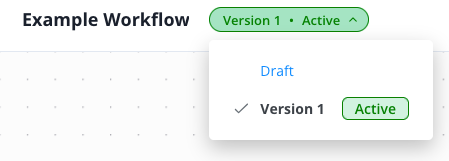
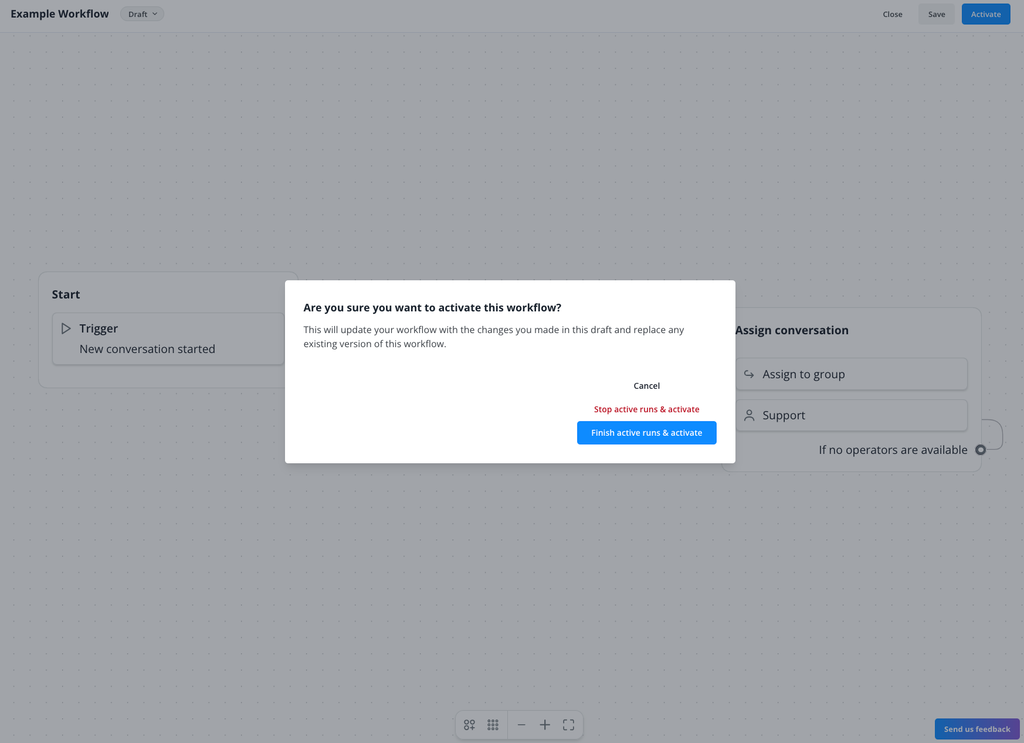
Within the “Draft” version, update the workflow to your liking. When finished, you can now activate the updated workflow again by clicking in the upper right.
You now need to choose if you want to wait until all active conversations using the current version are finished or if you want to immediately stop those running workflows and activate the new version immediately.
As you can now see in the upper left, you have Version 2 of your workflow active, with the option to revert back at any time or open the draft again for further updates.