
With Interactive UI, your AI Agent shows the contact a form, buttons, a carousel or media in the chat instead of only asking in plain text. By the end of this guide you have an action your AI Agent uses at the right moments: the contact picks a date in a calendar or taps an answer, for example, and the AI Agent carries on straight away with their choice.
You need an AI Agent and a role that is allowed to edit the Connect AI settings: on the "Roles" page, that is the "Administration" row on the "Connect AI" tab, set to "Edit". Without this permission you do not see the "Add" buttons. Optionally, add an API or MCP action that provides data such as free time slots or saves the answers.
Good to know first: a form only appears interactively in the Website Messenger. On other text channels the contact gets a question in plain text instead, and on calls the AI Agent does not offer the action at all; see "On which channels does each element appear?".
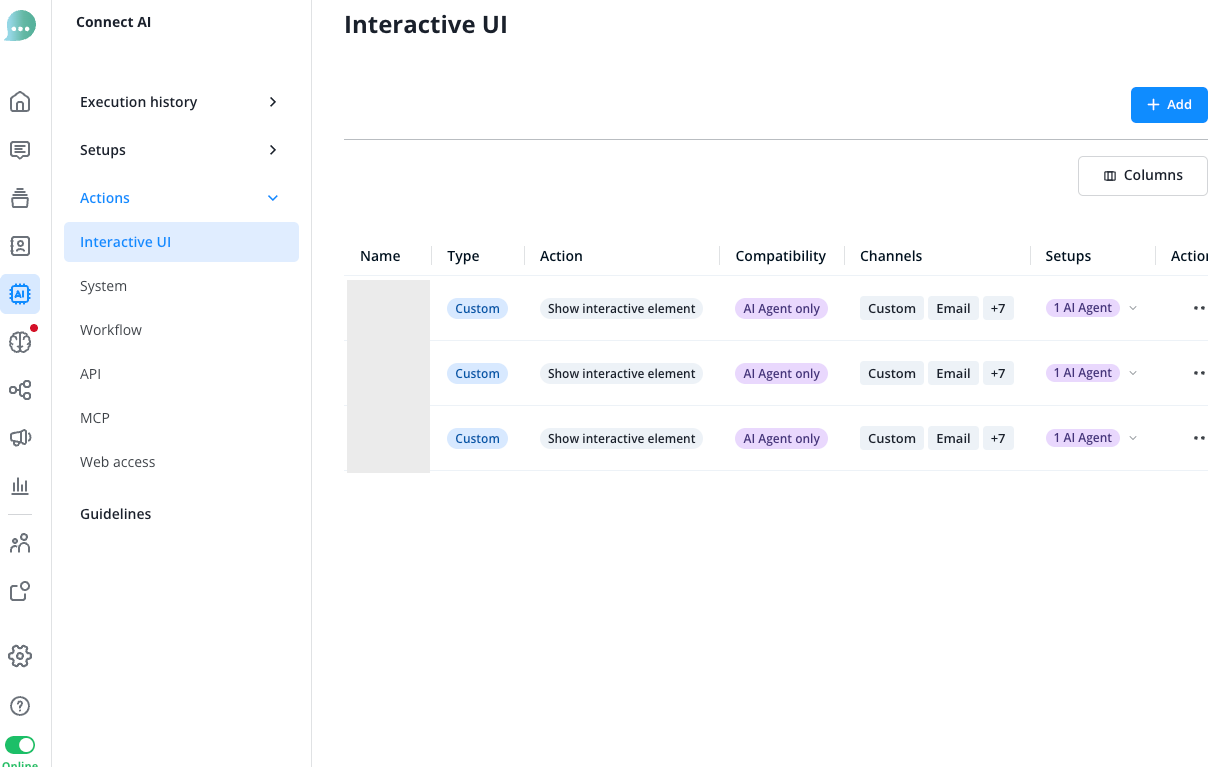
Each interactive element is an action of its own, of the type "Show interactive element". You find these actions in the Connect AI menu under Actions > "Interactive UI". Interactive UI is available to AI Agents only, not to the Copilot.
Which elements are there?
An action shows exactly one of these elements:
- Form: you set a headline and the fields, for example a date range, a choice and a text field. The contact fills in the form and sends all their answers at once.
- Buttons: the AI Agent writes a message with quick answers and links the contact can tap, in the Website Messenger and on WhatsApp optionally with an image or video above it.
- Carousel: the AI Agent presents options as swipeable cards with an image, a description and buttons.
- Media: the AI Agent shares an image, a video or a document with a caption.
The AI Agent writes the content itself in every conversation, in the contact's language: for a form the options, time slots and date limits, for the other elements the whole text including cards and buttons. You set what it should stick to in the "How to execute this action" field.
A new action always starts as a form. "+ Add element manually" adds form fields as well as buttons, a carousel or media; the "Interactive elements" group in that menu holds only those three.
On which channels does each element appear?
The elements appear interactively on these channels, which means the contact sees and uses the element itself. Where an element does not appear interactively, the contact gets a question in plain text instead.
- Form: interactive only in the Website Messenger; a text question on WhatsApp, on Facebook and on all other text channels.
- Buttons: interactive in the Website Messenger, on WhatsApp and on Facebook; a text question on the other text channels.
- Website Messenger: all answers and links right in the message, optionally with an image or video above it.
- WhatsApp: up to three answers as buttons, four to ten answers as a list that the contact opens with a button. An image or video appears above the message. The first two links arrive as messages of their own, further links together in one text message.
- Facebook: up to three answers as buttons, more than three as quick replies, that is, tappable suggestions with the message. There is no image or video, and all links arrive together in one text message.
- Carousel and Media: interactive in the Website Messenger and on WhatsApp; a text question on Facebook and on the other text channels. On WhatsApp, every card needs an image or a video and the same number of quick answers, at most two; if something is missing, the AI Agent is told to fix the cards. Where images, videos and files may come from is explained under "How do I show buttons, a carousel or media?".
The other text channels are Instagram, Telegram, SMS, email, Threema and custom channels. On calls, the AI Agent does not offer any Interactive UI action.
The AI Agent words the text question itself so that it asks for the same thing as the element. For a form with a date range and a room choice, for example, it sends one message asking which days and which room the contact wants to book. Images, videos and buttons are left out; only for media, the link to the file is added to the text.
The contact answers with a normal message, the AI Agent evaluates it and does not send the element again.
If WhatsApp or Facebook cannot display an element, the contact gets the text question instead, as on the other channels. This happens, for example, when WhatsApp rejects the message or cannot load a media file, or when buttons on Facebook contain only links and no answers.
On the settings page of every action, a note above the form or element shows how it arrives. It lists every channel type, including ones you have not set up:
- "Interactive on:" lists the channels where the contact sees the element itself. The note calls the Website Messenger "Website".
- "Shown as a text question on:" lists the channels where the contact gets the question in plain text.
- "Not offered on:" lists the channels where the AI Agent does not offer the action at all, that is "Phone".
Check "Interactive on:" before you save the action, because afterwards the element cannot be changed. If the element should appear interactively on WhatsApp, choose buttons, a carousel or media.
What do I need to know before saving?
An action's element is fixed as soon as you save the action. A form cannot become a carousel afterwards, and buttons cannot become media. For another element, create a new action.
Buttons, a carousel and media cannot be combined with form fields yet. While a form has fields, the "Interactive elements" group in the menu is greyed out, with a note below it. Before saving, remove the fields; after saving, create a new action.
Everything else stays editable: the name, "When to trigger this action" and "How to execute this action", and for a form the headline and the fields. You can add, rename, reorder and remove fields after saving as well.
How do I create an Interactive UI action?
In the Connect AI menu, open Actions > "Interactive UI" and click on "Add". The settings page of the new "Show interactive element" action opens straight away.
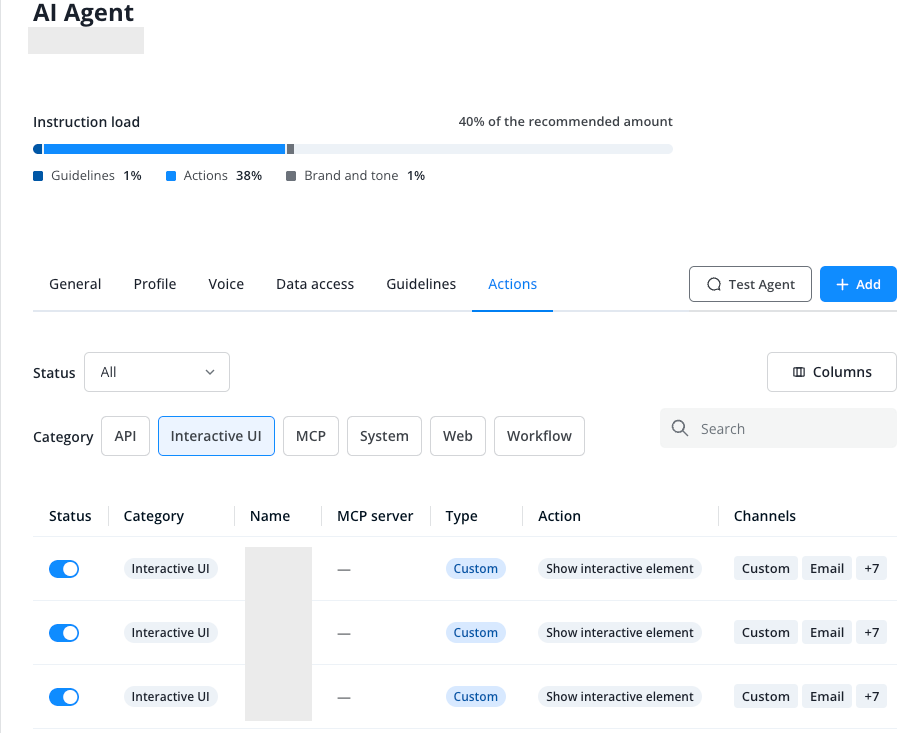
You can also create the action from an AI Agent: in the AI Agent's "Actions" tab, click on "Add", choose the "Interactive UI" category in the "Create a new action" window, and then the "Show interactive element" card. The same settings page opens; this does not switch the action on for that AI Agent.
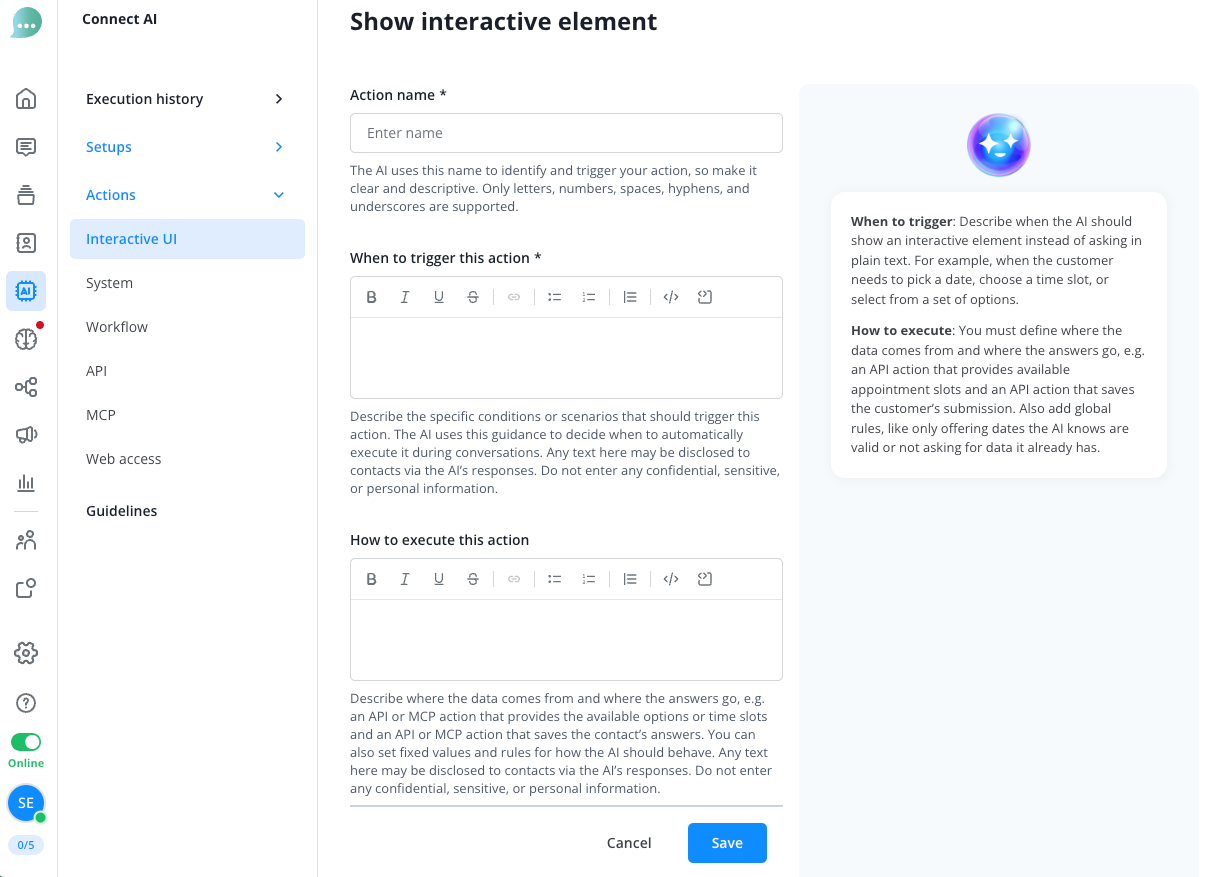
Under "Action name", give the action a clear name of up to 64 characters, because that is how the AI Agent recognises what the action is for. The name must start with a letter from a to z, upper or lower case, and end with a letter or a digit; in between, digits, spaces, hyphens and underscores are allowed too, but no umlauts, accents or other characters. Otherwise the field shows "Only letters, numbers, spaces, hyphens, and underscores are allowed."
Under "When to trigger this action", describe when the AI Agent should show the element instead of asking in plain text, for example when the contact needs to pick a date, a time slot or one of several options.
If the AI Agent should work with real data, the API or MCP action for it must exist already; the API Actions and MCP pages explain how to create them. Then describe under "How to execute this action" where the data comes from and where the answers go: for example one action that provides the available options or time slots, and one that saves the contact's answers. You can also set fixed values and rules under "How to execute this action". The tips on the right of the settings page give examples for both fields.
If you name no data source, the AI Agent picks sensible limits itself, such as a calendar for the coming days. It does not know your actual availability then.
Note that the AI Agent may pass on text from "When to trigger this action" and "How to execute this action" to contacts in its replies. A rule to offer only dates from your API action is fine; credentials, internal phone numbers or data about individual customers do not belong there.
How do I build a form?
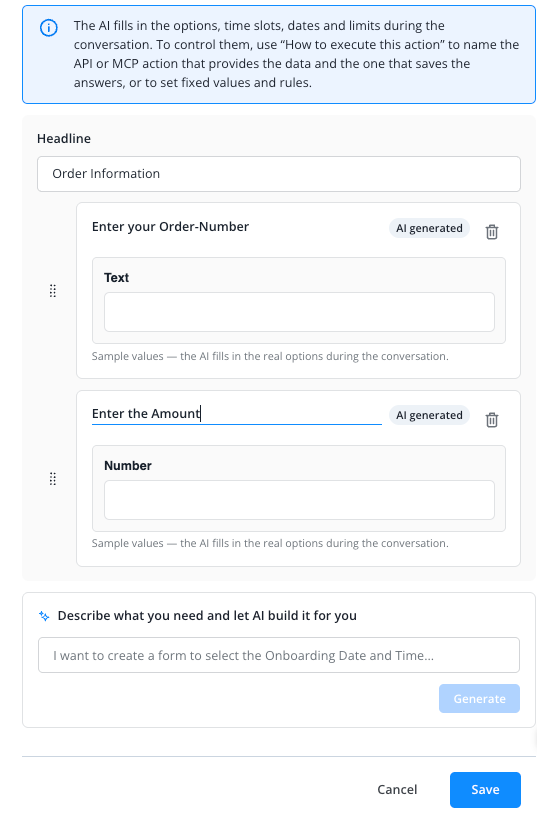
At the bottom of the settings page, under "Describe what you need and let AI build it for you", describe the details you want to collect and click on "Generate". The interface gives this box no name of its own; this guide calls it the AI form builder. It only helps while you set up the action, not during the conversation.
The AI form builder adds matching fields and marks them "AI generated". If the headline is still empty, it suggests one as well. Existing fields stay, and it does not add fields whose titles the form already has.
If "Could not build a form from that description. Try naming the details you want to collect." appears, describe more specifically which details you need.
The note above the fields shows on which channels the form appears interactively, as described under "On which channels does each element appear?".
To add fields yourself, click on "+ Add element manually" and choose a field type. The menu shows a short hint next to each type.
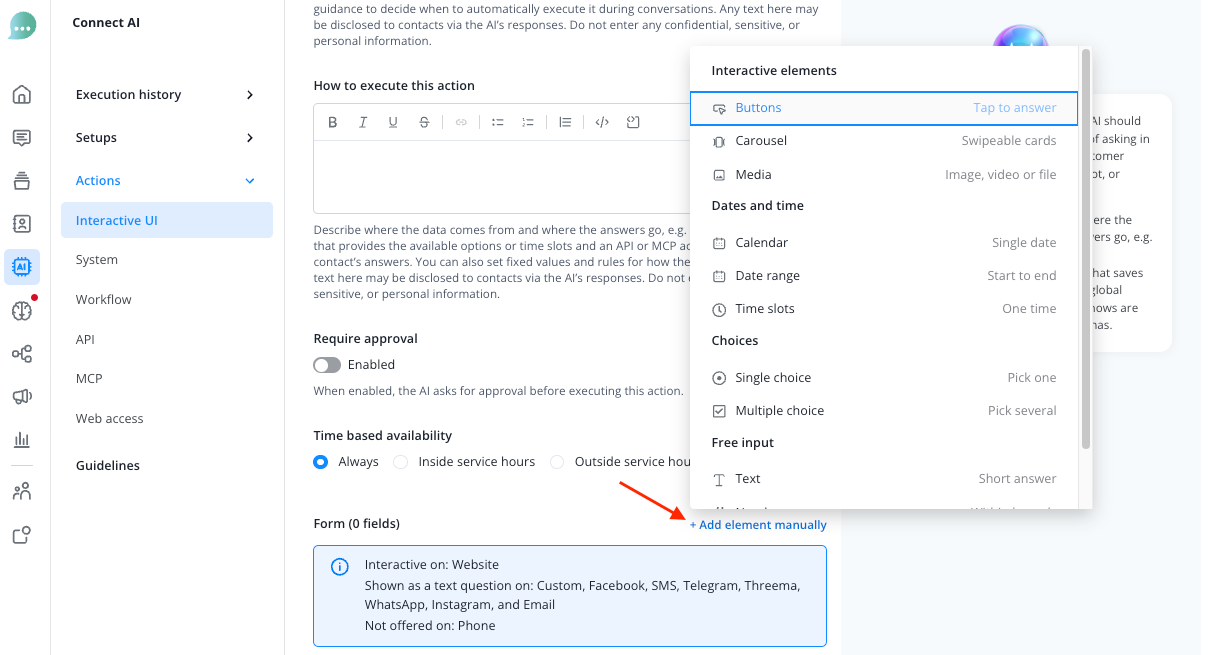
- Dates and time: "Calendar" for a single date, "Date range" for a start and an end, "Time slots" for one time out of several offered times
- Choices: "Single choice" when the contact picks one option, "Multiple choice" when they may pick several
- Free input: "Text" for a short answer, "Number" for a value within bounds, "Long text" for a description
Each field shows a preview with sample values. The AI Agent fills in the real options, time slots, date limits and bounds during the conversation, as you set out under "How to execute this action".
Click on a field's title to change it. A new field is first named after its type. Give each field its own title, because the contact sees it above the field, and their answer arrives in the Message Center under this title.
Change the order of the fields by drag and drop. Remove a field with the bin icon.
Under "Headline", enter what the contact should read above the whole form. The headline appears once above the form, a field's title directly above that field.
The headline and the field titles appear exactly as you type them and are not translated for contacts in other languages. Write them in your contacts' language.
The headline is required, and all fields are required: a field cannot be made optional, and the contact can only send the form once they have filled in every field.
If something is missing when you save, the settings page names the reason:
- "Add at least one field to save this action." appears when the form has no field yet.
- "Add a headline to save this action." appears when the headline is empty.
- "Give this field a title to save this action." appears on a field without a title.
- "Another field already uses this title. Give each field its own title." appears when two fields have the same title, even if only upper and lower case differ.
How do I show buttons, a carousel or media?
Click on "+ Add element manually" and, in the "Interactive elements" group, choose "Buttons" (Tap to answer), "Carousel" (Swipeable cards) or "Media" (Image, video or file).
This only works while the form has no fields. As long as it has fields, the group is greyed out with the note "Interactive elements can’t be combined with form fields yet. Create a separate action for them." Before saving, remove the fields with the bin icon, and the group can be selected again; after saving, create a new action instead.
The settings page then shows the chosen element instead of the form, with a preview made of sample content and the channel note above it. As long as the action is not saved, you can remove the element with the bin icon and build a form instead.
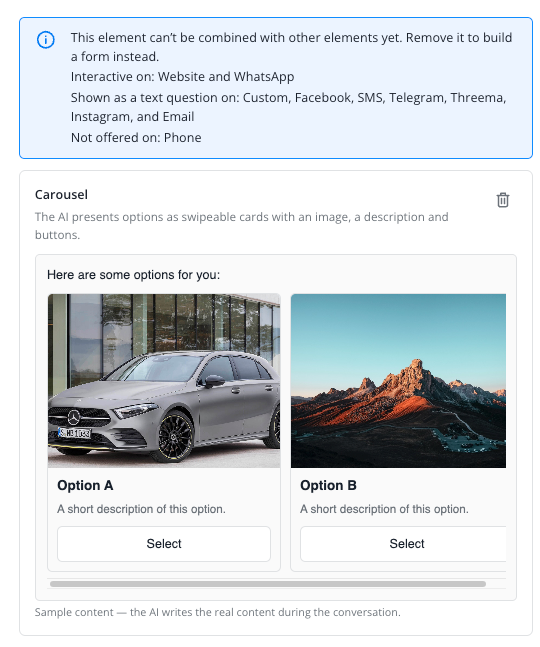
Under "How to execute this action", describe what the AI Agent should show, for example which products the carousel presents or which answers the buttons offer. A carousel has 2 to 10 cards, and buttons offer up to 10 answers or links.
The AI Agent only includes images, videos and files through links that start with https, and only from these sources:
- Buttons (image or video above the message): links in your instructions, in the result of another action (such as an API action) or in the conversation
- Carousel (image or video of each card): the same sources as for buttons
- Media (the file): links in your instructions or in the conversation; enter the file's link under "How to execute this action" for this
"In the conversation" means a link that someone sent in the chat.
How do I switch the action on for my AI Agent and test it?
Click on "Save" when the form or the element is ready. A new action is not switched on for any AI Agent, not even for the AI Agent in whose "Actions" tab you created it.
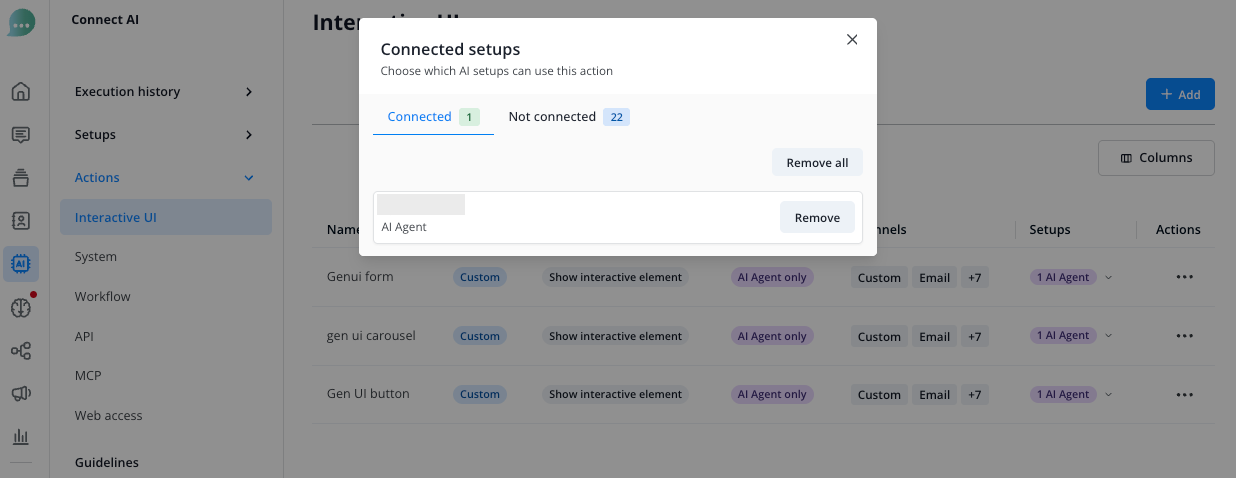
If you created the action under Actions > "Interactive UI", you return to the overview. Its "Setups" column shows which AI Agents use the action; setups here are your AI Agents. Click on "No setup" and, in the "Connected setups" window, select the AI Agents that should use the action. The column then shows, for example, "1 AI Agent".
If you created the action from an AI Agent, you return to its "Actions" tab. Switch the action on there in the "Status" column.
To test, you need a widget for the Website Messenger, and the "Test Agent" button only appears if the AI Agent has a chatbot. Once the action is switched on for this AI Agent, click on "Test Agent" to the right of the tabs in the AI Agent, choose a widget under "Widget" and click on "Open test conversation".
In the test conversation, write a message that matches your "When to trigger this action" text. If the element does not appear, check that the action is switched on for the AI Agent and that the text under "When to trigger this action" fits your message.
The test runs in the Website Messenger. You cannot use it to try out how the element arrives on WhatsApp or as a text question.
What does the contact see in the Website Messenger?
In the Website Messenger, the element appears right in the conversation. The contact fills in a form and sends it with "Confirm".
If an answer is missing, the form marks the field in red, and the contact can only send it once everything is filled in.
After sending, the form shows the contact's answers and can no longer be changed.
If the contact already gave an answer earlier in the conversation, the AI Agent can prefill it in the form.
With buttons and the carousel, the contact answers by tapping an answer.
Once the conversation has ended, the contact still sees the element but can no longer use it.
What does the operator see in the Message Center?
In the Message Center, the element appears as a message from the AI Agent showing the question in plain text, with the label "Interactive element" below it. As soon as the contact has answered through the element, "Answered" is added.
The contact's answer follows as a message of its own, for a form one line per field with the title and the answer.
What about "Show carousel" and "Show media and buttons"?
The older action types "Show carousel" and "Show media and buttons" under Actions > "System" carry the "LEGACY" label. They keep working, you can still create new ones, and nothing is converted automatically.
For new actions, use the "Carousel" element here instead of "Show carousel", and instead of "Show media and buttons" the "Buttons" element or, for an image, a video or a file, the "Media" element ("Image, video or file"). When you hover over the LEGACY label, its hint names only "Buttons" and "Carousel"; for an image, a video or a file, use "Media".
Buttons can show an image or a video above the message, but not a file. With Interactive UI the AI Agent shows only one element per reply, so a file and buttons never arrive in one message; you need two actions for them, one with "Media" and one with "Buttons". The legacy "Show media and buttons" action, on the other hand, can send a file together with buttons in one message and still covers this case.
Do not switch on a legacy action and a new action for the same purpose.
You can read more about the LEGACY label on the System Actions page, under "What does the LEGACY label mean?".