With System Actions, you give your AI Agent action instructions that are not based on the knowledge database, but rather on direct inputs from contacts, for example.
An example:
Have your AI Agent automatically initiate a transfer of the conversation to a human operator when the contact uses certain keywords or the AI detects a specific tone. This way, you can immediately connect contacts who are considering cancellation with the appropriate team member, for example.
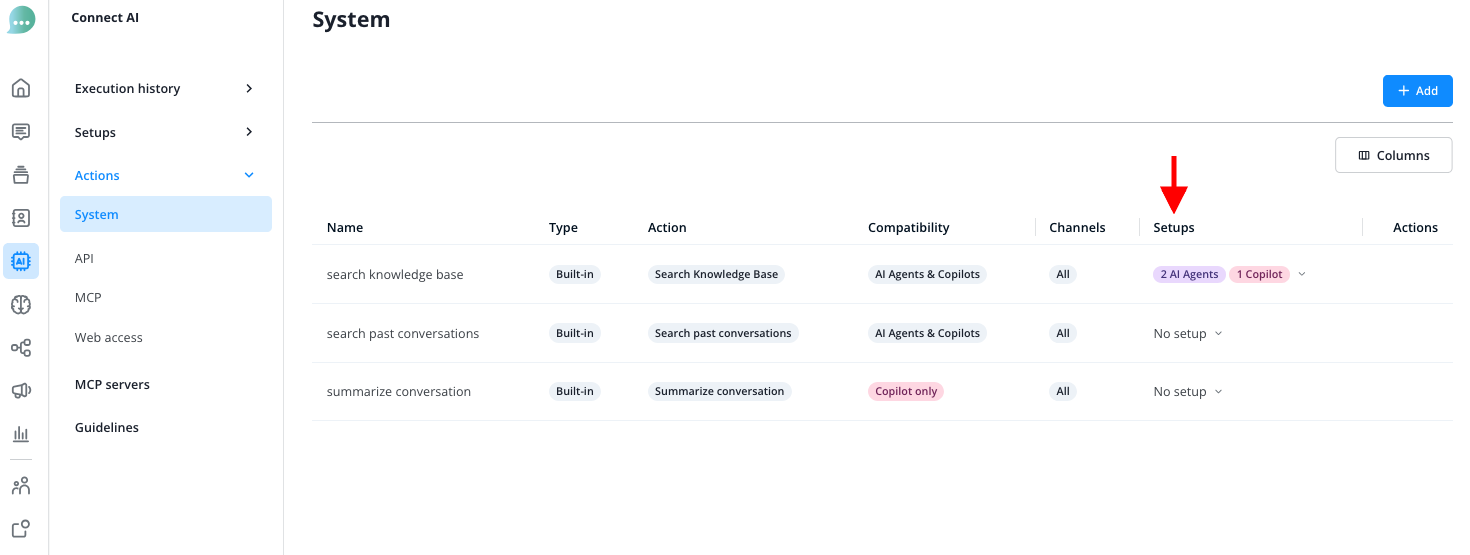
Create a new Action by clicking the "Add" button in the Connect AI menu under Actions > System Actions. Then select the desired action type:
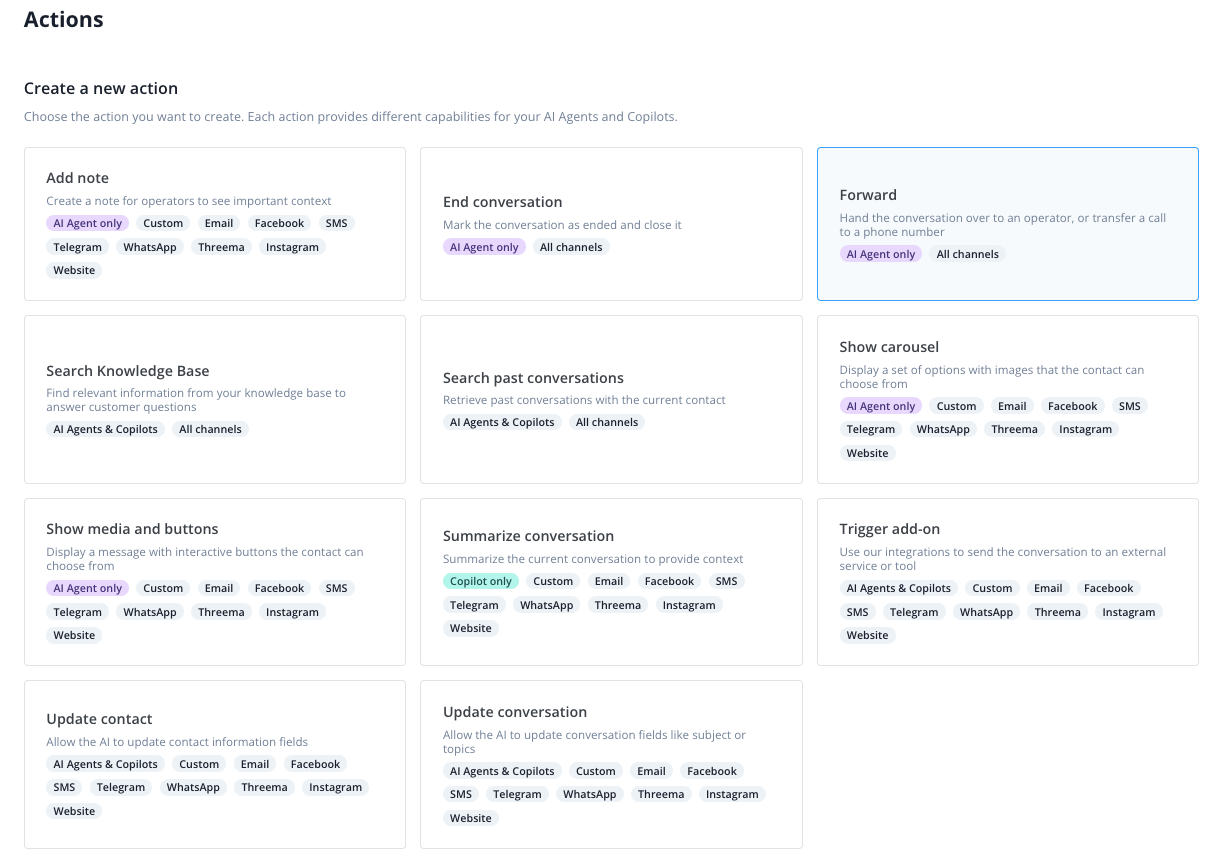
- Add note
- creates a note with important context for operators
- available for AI Agents on all channels
- End conversation
- marks the conversation as ended and closes it
- can send a closing message first, which you describe in the "How to execute this action" field
- available for AI Agents on all channels
- Forward
- hands the conversation over to an operator, or transfers a call to a phone number
- on text channels to the next available operator, to an operator group, or by skills
- on calls to an external phone number, provided the phone channel is enabled for your organization
- replaces the former "Transfer call" action type; existing actions of that type were converted automatically
- available for AI Agents on the channels you set it up for; see "How do I forward a conversation or a call?" below
- Search knowledge base
- finds relevant information from the knowledge base to answer customer questions
- available for AI Agents and Copilot on all channels
- Search past conversations
- retrieves previous conversations with the same contact
- available for AI Agents and Copilot on all channels
- Show carousel
- displays a selection of options with images for the contact to choose from
- available for AI Agents on all text channels
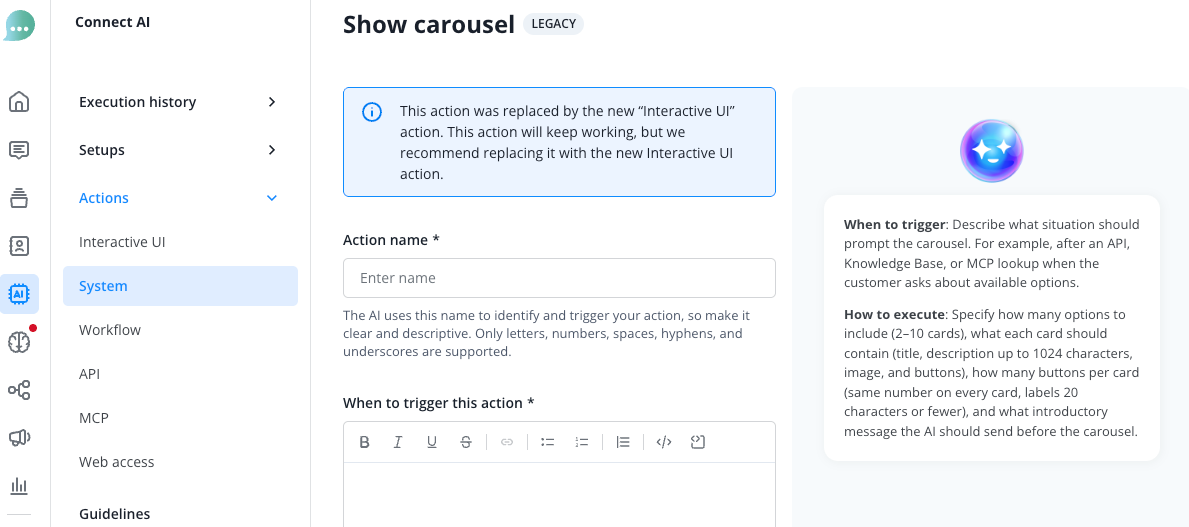
- carries the "LEGACY" label; see "What does the LEGACY label mean?" below
- Show media and buttons
- displays a message with interactive buttons the contact can choose from
- available for AI Agents on all text channels
- carries the "LEGACY" label; see "What does the LEGACY label mean?" below
- Summarize conversation
- summarizes the current conversation to provide context
- available for Copilot on all channels
- Trigger add-ons
- sends the conversation to an external service or tool via integrations
- available for AI Agents and Copilot on all channels
- Update contact
- allows the AI to update contact information
- available for AI Agents on all channels
- Update conversation
- allows the AI to update conversation fields such as subject or topics
- available for AI Agents on all channels
After you have created a System Action, you still need to make it available to your AI Agent.
Select from the overview which System Actions should be available to which AI Agents and Copilots.
How do I forward a conversation or a call?
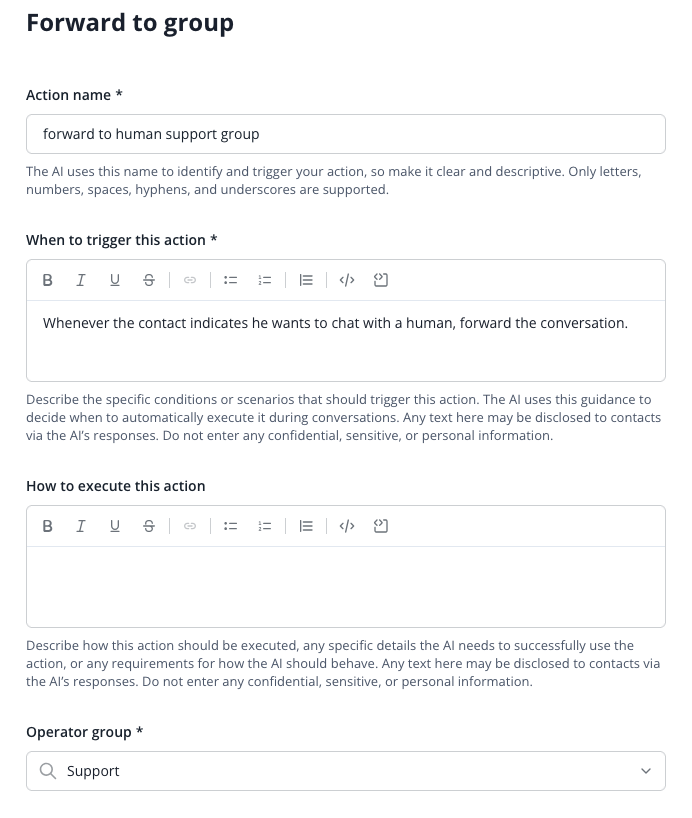
With the "Forward" action type, your AI Agent hands the conversation over to your operators in the Message Center, or a live phone call over to an external phone number you provide. With the phone channel, you set up both in the same action, on two tabs: "Text channels" and "Phone".
You only see the "Phone" tab if the phone channel is enabled for your organization. The phone channel is in Alpha state; reach out to your account manager if you want to test it. Without the phone channel, the form shows no tabs and no "None" option: you choose one of the three options below, and the section "How do I transfer a call?" does not apply to you.
For text channels, choose who the AI Agent hands the conversation to (with the phone channel, on the "Text channels" tab):
- "To the next available operator"
- "To group", then choose the "Operator group"
- "By skills", then choose the "Skills"; the conversation goes to an operator who has all of the chosen skills
If you choose "To group" without an operator group, or "By skills" without at least one skill, the action cannot be saved. You manage operator groups and skills in the "Settings" under "Team" > "Operator groups" and "Team" > "Skills". With the phone channel, "None" is selected on the "Text channels" tab at first; leave "None" if the action should only transfer calls.
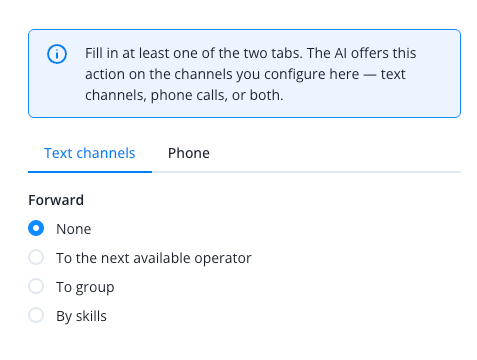
With the phone channel, fill in at least one of the two tabs. "Text channels" counts as filled in when an option other than "None" is selected, "Phone" when it holds a phone number and, with "Stay on the line and transcribe", a SIP gateway address. The channels on which the AI Agent offers the action follow from that:
- "Text channels" only: every channel except phone
- "Phone" only: calls only
- both: every channel
So the "All channels" badge on the "Forward" card shows the most the action can cover, not what a saved action actually uses. Without the phone channel, the card shows one badge per text channel instead.
With the phone channel, also: if neither tab is filled in, the action cannot be saved, and both tabs show "Configure forwarding for text channels or for phone calls." Choose an option on the "Text channels" tab, or enter a phone number on the "Phone" tab. A tab holding an error turns red, so you can spot it from the other tab as well.
For the "Phone" tab, continue with "How do I transfer a call?".
If you only set up text channels, save the action now and make it available to your AI Agent, as described above. You then see it in the overview of your System Actions in the Connect AI menu under "Actions" > "System"; in the "Action" column, a "Forward" action shows its text channel option, for example "Forward to group", even if its "Phone" tab is filled in too.
What happened to my existing "Transfer call" actions?
Actions of the former "Transfer call" action type are converted into "Forward" actions automatically during the update. Their phone number, transfer mode and SIP details are kept, as is their assignment to your AI Agents, and they transfer calls as before. On these actions, the "Text channels" tab is set to "None". Your existing "Forward" actions for text channels stay as they are.
In the overview, a converted action, like any "Forward" action that only transfers calls, shows as "Forward call" in the "Action" column, whichever transfer mode it uses. Its "Channels" column lists only "Phone".
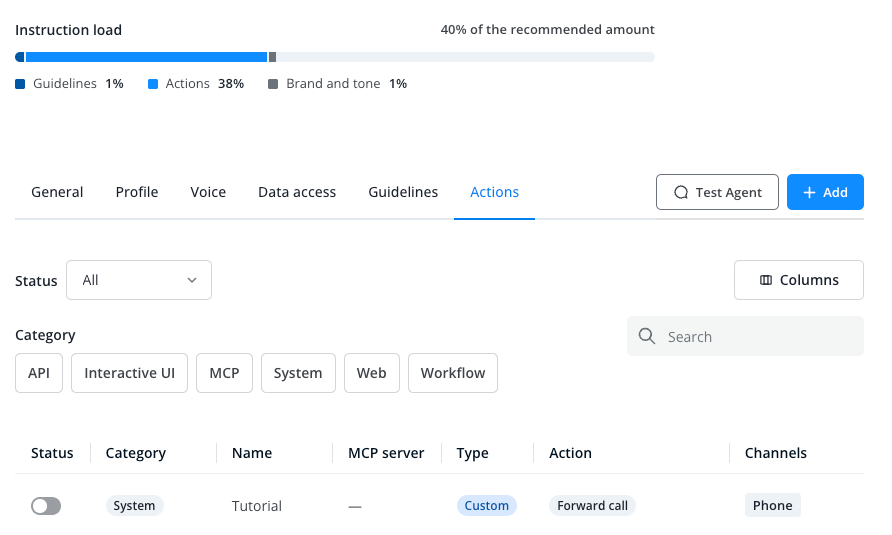
Do not confuse "Forward call" in the overview with "Forward the call", one of the two transfer modes.
How do I transfer a call?
This section only applies if the phone channel is enabled for your organization. On the "Phone" tab, the "Transfer mode" field decides how the AI Agent hands the call over. "Forward" and "transfer" mean the same thing here. Under "Phone number", enter the number the call goes to, in international format with "+" and the country code, for example +49 30 1234567.
"Forward the call" is preselected. If you switch an action, including a converted one, from "Stay on the line and transcribe" to "Forward the call", saving clears its SIP details. Choose the mode:
- Forward the call: Choose this mode if the caller only needs to be connected. The caller is passed on directly to the number you enter under "Phone number". Once someone picks up, the AI Agent leaves the call, and the person picking up sees the caller's number. You need nothing beyond the phone number.
- Stay on the line and transcribe: Choose this mode if your operators need a transcript of the conversation. It requires a SIP gateway of your own, meaning the connection your telephone system or provider uses to place calls over the internet. The call is placed through it. The call stays on the AI Agent's phone line. The AI Agent stays silent and adds a transcript of the rest of the conversation to the Message Center. The person picking up sees the AI Agent's number.
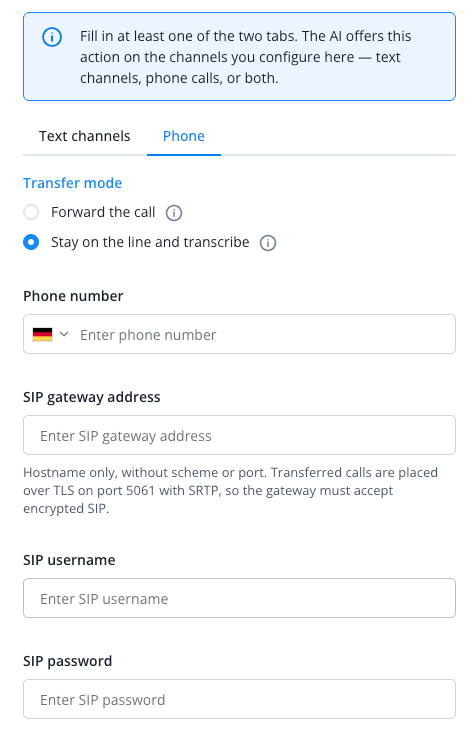
For "Stay on the line and transcribe" you fill in: "Phone number", "SIP gateway address", and, if your gateway requires them, "SIP username" and "SIP password". Besides the phone number, only the SIP gateway address is mandatory. Enter the hostname only, with no scheme, port or parameters: transferred calls are placed over TLS on port 5061 with SRTP, so your gateway has to accept encrypted SIP.
If you later switch to "Forward the call" and save the action, its SIP gateway address, SIP username and SIP password are cleared, because that mode does not use them. Switching back means entering them again, so keep them at hand.
If nobody answers on the number you gave within 30 seconds, the AI Agent stays with the caller in both modes and offers another way to help. The call is not ended.
If something is missing on the "Phone" tab, the action cannot be saved:
- "A phone number needs a SIP gateway to be dialled through." appears when "Stay on the line and transcribe" has a phone number but no SIP gateway address. Enter the SIP gateway address, or switch to "Forward the call" if you do not have a SIP gateway of your own.
- "Enter the phone number calls are transferred to." appears when a SIP gateway address is filled in but no phone number. Enter the phone number, or clear the SIP gateway address if the action should not transfer calls.
Then make the action available to your AI Agent, as described above.
What does the LEGACY label mean?
"LEGACY" marks the "Show carousel" and "Show media and buttons" action types: they are being replaced by Interactive UI, which you find in the Connect AI menu under "Actions" > "Interactive UI". For new actions, use these elements there:
- instead of "Show carousel": "Carousel"
- instead of "Show media and buttons": "Buttons", or "Media" ("Image, video or file") for an image, a video or a file
Existing actions of both types keep working, and you can still create new ones. Nothing is converted automatically. You do not need to do anything with existing actions.
The label shows in the action type picker and before the title in the action's form. Its hover text names only the "Buttons" and "Carousel" elements: "Replaced by Interactive UI. Existing actions keep working, but for new ones use the Buttons or Carousel element under Interactive UI."
The form shows the same message above the "Action name" field: "This action type is being replaced by Interactive UI. Your existing actions keep working. For new actions, use the Buttons or Carousel element under Interactive UI."